Radar Chart
Chart overview
Radar charts (also called spider or web charts) display multivariate data by plotting values on axes radiating from a central point.
Key points
- Each axis represents a different variable, and data points are connected to form a polygon.
- They're effective for comparing performance profiles, skill assessments, and any situation where you want to compare multiple entities across the same set of metrics.
- Two structural quirks demand attention before you trust one.
Practical guidance
First, every axis must be normalized to a shared scale (typically 0-1 or 0-100) - plotting raw values with different units makes the polygon shape an artifact of unit choice, not of the data. Second, the enclosed area grows quadratically while the underlying values grow linearly, so a profile that is uniformly twice as good looks four times bigger; never let readers judge by area, and say so in the caption if the comparison is quantitative. Axis order also silently shapes the polygon: adjacent axes create visual lobes, so the same data in a different order tells a different visual story - fix an order that groups related metrics and keep it identical across every chart in the set. Practical limits are tight: beyond about 7 axes labels collide, and beyond 3 overlaid entities the filled polygons occlude each other - drop fill opacity to around 0. 2, or switch to small multiples with one radar per entity. When entities differ mostly on one or two metrics, a plain grouped bar chart communicates the same comparison with none of these distortions; the radar earns its place only when the overall profile shape is the message.
Create a Radar Chart with your data using AI — no coding required.
Further reading
How to Create a Bar Chart in Python
Matplotlib, seaborn, and plotly patterns for grouped bars, error bars, and publication-ready labels.
Read the guideExample Visualization
Create This Chart Now
Generate publication-ready radar charts with AI in seconds. No coding required – just describe your data and let AI do the work.
View example prompt
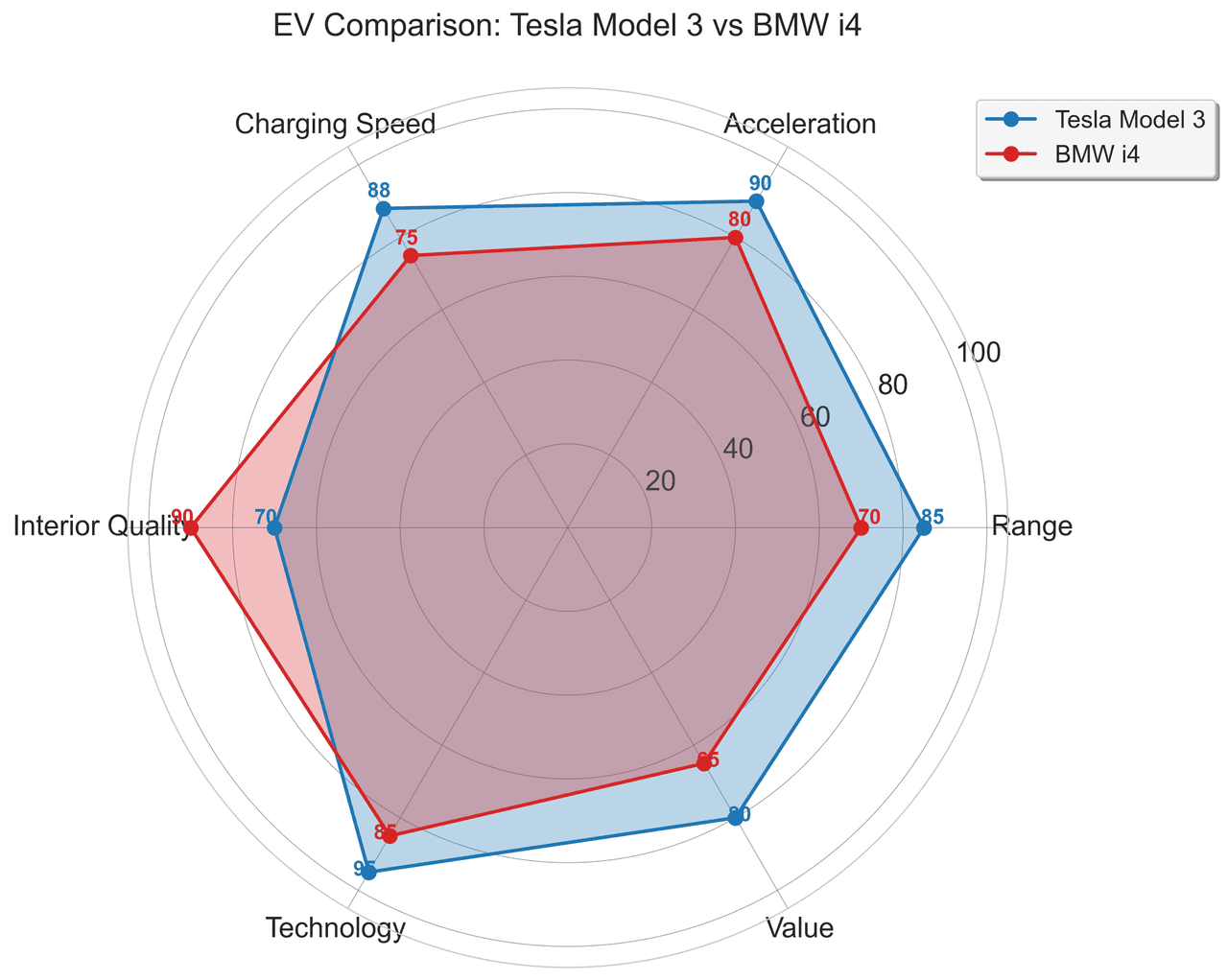
"Create a radar chart comparing performance metrics for 2 electric vehicle models: Tesla Model 3 vs BMW i4. Use 6 standardized metrics (0-100 scale): 'Range' (Tesla: 85, BMW: 70), 'Acceleration' (Tesla: 90, BMW: 80), 'Charging Speed' (Tesla: 88, BMW: 75), 'Interior Quality' (Tesla: 70, BMW: 90), 'Technology' (Tesla: 95, BMW: 85), 'Value' (Tesla: 80, BMW: 65). Use distinct colors with semi-transparent fill (Tesla: blue, BMW: red, alpha=0.3). Connect points with solid lines. Add value labels at each vertex. Include a circular gridlines at 20, 40, 60, 80, 100. Add a legend identifying each model. Title: 'EV Comparison: Tesla Model 3 vs BMW i4'."
How to create this chart with your data
Upload Data
Upload your Excel or CSV file. Data used to generate charts is sent to Plotivy's server for processing.
AI Generation
Our AI analyzes your data and generates the Radar Chart code automatically.
Customize & Export
Tweak the design with natural language, then export as high-res PNG, SVG or PDF.
Newsletter
Get one weekly tip for better radar charts
Join researchers receiving concise Python plotting techniques to improve chart clarity and reduce revision cycles.
Python Code Example
# === IMPORTS ===
import pandas as pd
import matplotlib.pyplot as plt
import squarify

# === USER-EDITABLE PARAMETERS ===
# Change: Modify these lists to update countries and their land areas (in km²)
countries = [
    'Russia', 'Canada', 'United States', 'China', 'Brazil', 'Australia',
    'India', 'Argentina', 'Kazakhstan', 'Algeria'
]
land_areas = [
    17098242, 9984670, 9833517, 9596961, 8515767, 7692024,
    3287263, 2780400, 2724902, 2381741
]

# Change: Customize figure size (width, height in inches)
figsize = (12, 8)

# Change: List of hex colors for categorical groups (add more if needed, limit to 10 for visibility)
colors = [
    '#1f77b4', '#ff7f0e', '#2ca02c', '#d62728', '#9467bd',
    '#8c564b', '#e377c2', '#7f7f7f', '#bcbd22', '#17becf'
]

# Change: Font sizes for title (larger) and general elements
title_fontsize = 18
label_fontsize = 16  # Used for any text labels if added

# Change: Toggle to show percentages in labels (True/False)
show_percentages = True

# Change: Alpha (transparency) for squares, 0.6-0.9 recommended for overlaps
alpha = 0.8

# Data preparation
# Create DataFrame from example data
df = pd.DataFrame({'Countries': countries, 'Land Area': land_areas})

# Sort by land area descending for proper largest-first layout
df = df.sort_values('Land Area', ascending=False).reset_index(drop=True)

# Calculate total and percentages for insights
total_area = df['Land Area'].sum()
df['Percentage'] = (df['Land Area'] / total_area * 100).round(1)

# Print relevant data values
print("Top 10 countries by land area (km²) and share of total:")
print(df[['Countries', 'Land Area', 'Percentage']].round({'Land Area': 0}))
print(f"\nTotal land area in dataset: {total_area:,.0f} km²")
print(f"Largest country ({df['Countries'].iloc[0]}) share: {df['Percentage'].iloc[0]:.1f}%")

# Create insight-driven title
largest_country = df['Countries'].iloc[0]
largest_share = df['Percentage'].iloc[0]
insight_title = f"{largest_country} dominates with {largest_share:.1f}% of total land area among top 10 countries"

# Create plot
fig, ax = plt.subplots(figsize=figsize)

# Prepare labels: country name + optional percentage
if show_percentages:
    labels = [f"{country}\n{perc:.1f}%" for country, perc in zip(df['Countries'], df['Percentage'])]
else:
    labels = df['Countries'].tolist()

# Generate proportional squares using squarify (areas exactly proportional to land area)
squarify.plot(
    sizes=df['Land Area'],
    label=labels,
    color=colors[:len(df)],
    alpha=alpha,
    ax=ax,
    bar_kwargs={'linewidth': 2, 'edgecolor': 'white'}  # Change: Add white edges for separation
)

# Customize title with insight
ax.set_title(insight_title, fontsize=title_fontsize, pad=20, weight='bold')

# Remove axes for clean proportional area view
plt.axis('off')

# Adjust layout to prevent clipping (title, labels)
plt.subplots_adjust(top=0.92)
plt.tight_layout()

# Assign final plot to fig (required)
fig

# Display the plot
plt.show()
# END-OF-CODEOpens the Analyze page with this code pre-loaded and ready to execute
Console Output
Comparison Summary:
  Average Score - Tesla: 85.7
  Average Score - BMW: 77.5
  Tesla Strongest: Technology
  BMW Strongest: Interior Quality
Common Use Cases
- 1Product feature comparison
- 2Employee skill assessment
- 3Sports player statistics
- 4Brand perception analysis
Pro Tips
Normalize every metric to a shared scale before comparing profile shapes
Keep the axis order consistent and group related metrics together
Limit the number of axes and use small multiples when labels or profiles overlap
Use transparent fills, distinct lines, and direct labels when comparing multiple entities
Frequently asked questions
When should you use a radar chart?
Radar charts (also called spider or web charts) display multivariate data by plotting values on axes radiating from a central point. Each axis represents a different variable, and data points are connected to form a polygon. Common applications include product feature comparison, employee skill assessment, and sports player statistics.
Which Python libraries can create a radar chart?
A radar chart can be built in Python with matplotlib and plotly — matplotlib for precise control over axes, annotations, and journal styling and Plotly for interactive hover, zoom, and web sharing. In Plotivy you describe the figure and it writes the matplotlib code for you.
Can I make a radar chart without writing Python code?
Yes. Describe the radar chart you need in plain language and upload your dataset — Plotivy's AI writes the Python code and renders a publication-ready figure. You still get the full, editable matplotlib source, so nothing is locked in a black box.
What are best practices for a clear radar chart?
Normalize every metric to a shared scale before comparing profile shapes. Keep the axis order consistent and group related metrics together.
Library comparison for this chart
matplotlib
Best when you need full control over axis formatting, annotation placement, and journal-specific styling for radar-chart.
plotly
Best for interactive hover, zoom, and web sharing when collaborators need to inspect values directly from radar-chart figures.
Scientific Chart Selection Cheat Sheet
Not sure whether to use a Violin Plot, Box Plot, or Ridge Plot? Download our single-page reference mapping the most-used scientific chart types, exactly when to use them, and the core Matplotlib/Seaborn functions.