Flow Map
Chart overview
Flow maps visualize movement between locations using lines or arrows, with width often proportional to volume.
Key points
- They effectively display migration patterns, trade routes, transportation flows, and any origin-destination data with geographic context.
- The core encoding is an origin-destination (OD) matrix draped over real geography, so a flow map is the right choice only when the spatial positions themselves carry meaning — where flows originate and terminate, which regions are hubs, how distance shapes movement.
- If geography is incidental and you only care about the volume of exchange between entities, a chord diagram or a Sankey diagram shows the same OD data with far less visual clutter.
Practical guidance
The perennial problem with flow maps is overplotting: dozens of straight great-circle lines crossing a continent become an unreadable hairball. Mitigate it by using curved or bundled edges, scaling line width (not just color) to volume, drawing the largest flows last so they sit on top, and filtering to the top-N flows or a single origin. In Python, folium and plotly render interactive flow maps with pan and zoom, while geopandas plus matplotlib gives publication-ready static maps; project coordinates appropriately (avoid raw lat/lon on a flat axis for anything beyond a small region) and always include a width legend so readers can decode volume.
Create a Flow Map with your data using AI — no coding required.
Further reading
How to Create a Heatmap in Python
Annotated matrices, correlation heatmaps, clustering, and colorbar best practices.
Read the guideExample Visualization
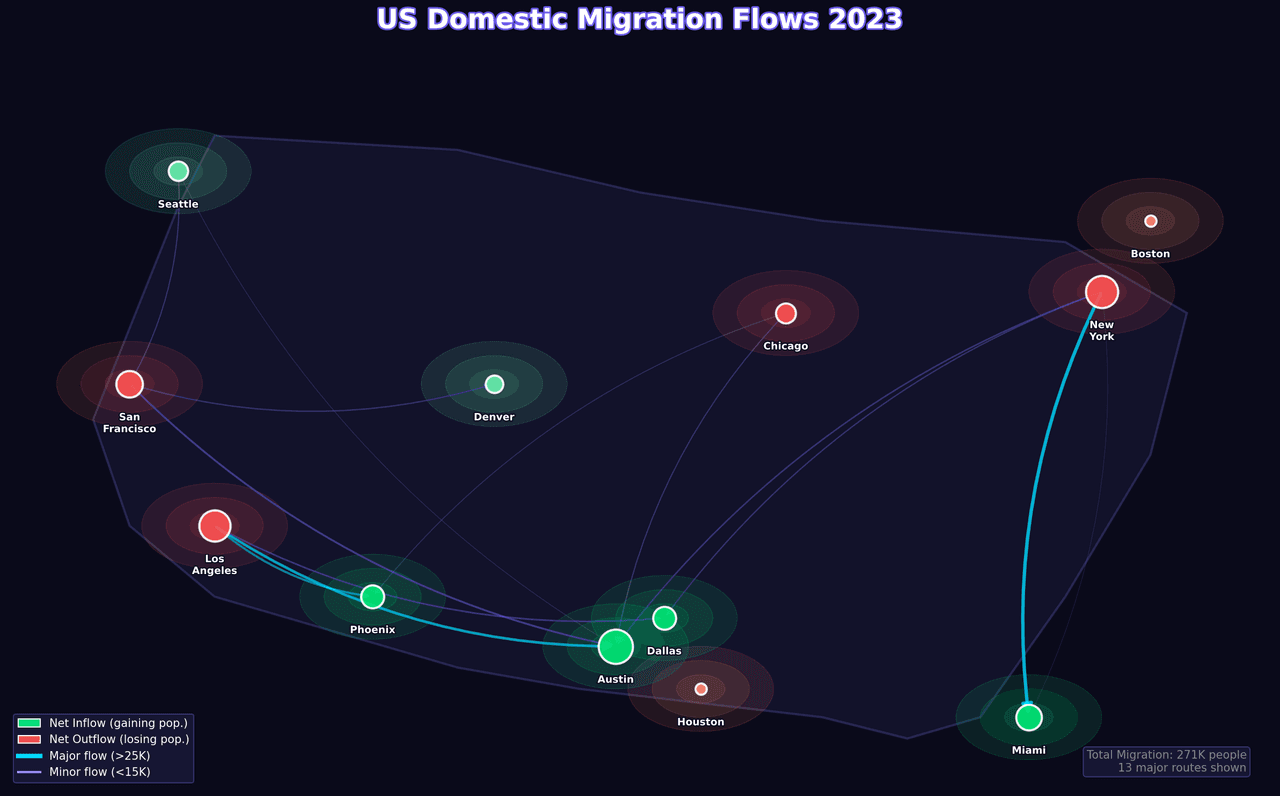
Create This Chart Now
Generate publication-ready flow maps with AI in seconds. No coding required – just describe your data and let AI do the work.
View example prompt
"Create an interactive flow map showing 'US Interstate Migration Patterns' between major metropolitan areas. Generate realistic migration data for flows between 15 cities: top outflows from California (LA, SF) and New York to Texas (Austin, Dallas, Houston), Florida (Miami, Tampa), and Arizona (Phoenix). Flow volumes range from 5,000 to 50,000 annual migrants. Draw curved arrows between origin and destination. Arrow width proportional to migration volume. Color by net flow direction: blue for inflows, red for outflows. Animate flows with moving particles. Size city markers by population. Add hover showing origin, destination, annual migrants, and percentage of origin population. Include a summary panel showing top gainers and losers. Title: 'US Domestic Migration Flows 2023'."
How to create this chart with your data
Upload Data
Upload your Excel or CSV file. Data used to generate charts is sent to Plotivy's server for processing.
AI Generation
Our AI analyzes your data and generates the Flow Map code automatically.
Customize & Export
Tweak the design with natural language, then export as high-res PNG, SVG or PDF.
Newsletter
Get one weekly tip for better flow maps
Join researchers receiving concise Python plotting techniques to improve chart clarity and reduce revision cycles.
Python Code Example
# === IMPORTS ===
import numpy as np
import matplotlib.pyplot as plt
from matplotlib.patches import FancyArrowPatch, Circle
import matplotlib.patheffects as pe

# === USER-EDITABLE PARAMETERS ===
title = "US Domestic Migration Flows 2023"
figsize = (16, 10)

# === EXAMPLE DATASET ===
# Major cities with coordinates (lat, lon) - simplified for plotting
cities = {
    'Los Angeles': {'pos': (0.15, 0.35), 'pop': 3.9},
    'San Francisco': {'pos': (0.08, 0.55), 'pop': 0.87},
    'Seattle': {'pos': (0.12, 0.85), 'pop': 0.75},
    'Phoenix': {'pos': (0.28, 0.25), 'pop': 1.6},
    'Denver': {'pos': (0.38, 0.55), 'pop': 0.72},
    'Dallas': {'pos': (0.52, 0.22), 'pop': 1.3},
    'Houston': {'pos': (0.55, 0.12), 'pop': 2.3},
    'Austin': {'pos': (0.48, 0.18), 'pop': 1.0},
    'Chicago': {'pos': (0.62, 0.65), 'pop': 2.7},
    'Miami': {'pos': (0.82, 0.08), 'pop': 0.45},
    'New York': {'pos': (0.88, 0.68), 'pop': 8.3},
    'Boston': {'pos': (0.92, 0.78), 'pop': 0.68},
}

# Migration flows: (origin, destination, migrants in thousands)
flows = [
    ('Los Angeles', 'Austin', 35),
    ('Los Angeles', 'Phoenix', 28),
    ('Los Angeles', 'Dallas', 22),
    ('San Francisco', 'Austin', 25),
    ('San Francisco', 'Denver', 18),
    ('San Francisco', 'Seattle', 15),
    ('New York', 'Miami', 45),
    ('New York', 'Austin', 20),
    ('New York', 'Dallas', 18),
    ('Chicago', 'Austin', 15),
    ('Chicago', 'Phoenix', 12),
    ('Miami', 'New York', 8),
    ('Seattle', 'Austin', 10),
]

# Calculate inflow/outflow
inflow = {city: 0 for city in cities}
outflow = {city: 0 for city in cities}
for origin, dest, migrants in flows:
    outflow[origin] += migrants
    inflow[dest] += migrants

# Print summary
print("=== US Domestic Migration Flows ===")
print(f"\nCities: {len(cities)}")
print(f"Flow Routes: {len(flows)}")
print(f"\nTop Destinations:")
for city, flow in sorted(inflow.items(), key=lambda x: x[1], reverse=True)[:5]:
    if flow > 0:
        print(f"  {city}: +{flow}K migrants")
print(f"\nTop Origins (outflow):")
for city, flow in sorted(outflow.items(), key=lambda x: x[1], reverse=True)[:3]:
    print(f"  {city}: -{flow}K migrants")

# === CREATE FLOW MAP ===
fig, ax = plt.subplots(figsize=figsize, facecolor='#0a0a1a')
ax.set_facecolor('#0a0a1a')

# Draw simplified US outline
us_outline_x = [0.05, 0.12, 0.15, 0.35, 0.50, 0.65, 0.85, 0.95, 0.92, 0.85,
                0.78, 0.72, 0.65, 0.55, 0.45, 0.35, 0.25, 0.15, 0.08, 0.05]
us_outline_y = [0.50, 0.80, 0.90, 0.88, 0.82, 0.78, 0.75, 0.65, 0.45, 0.25,
                0.08, 0.05, 0.08, 0.10, 0.12, 0.15, 0.20, 0.25, 0.35, 0.50]
ax.fill(us_outline_x, us_outline_y, color='#1a1a3a', alpha=0.5, edgecolor='#404080', linewidth=2)

# Draw flows with curved arrows
for origin, dest, migrants in flows:
    x1, y1 = cities[origin]['pos']
    x2, y2 = cities[dest]['pos']

    # Arrow properties based on flow size
    width = migrants / 15
    alpha = min(0.8, migrants / 50)

    # Gradient color: blue to purple
    color = '#00D9FF' if migrants > 25 else '#6C5CE7' if migrants > 15 else '#A29BFE'

    # Create curved arrow
    style = f"arc3,rad=0.15"
    arrow = FancyArrowPatch(
        (x1, y1), (x2, y2),
        connectionstyle=style,
        arrowstyle='-|>',
        mutation_scale=10 + migrants/5,
        color=color,
        linewidth=width,
        alpha=alpha,
        zorder=2
    )
    ax.add_patch(arrow)

# Draw cities
for city, data in cities.items():
    x, y = data['pos']

    # Net flow determines color
    net = inflow[city] - outflow[city]
    if net > 20:
        color = '#00E676'  # Strong net inflow - green
    elif net > 0:
        color = '#69F0AE'  # Mild net inflow
    elif net > -20:
        color = '#FF8A65'  # Mild net outflow
    else:
        color = '#FF5252'  # Strong net outflow - red

    # Size based on total activity
    activity = inflow[city] + outflow[city]
    size = 100 + activity * 8

    # Glow effect
    for i in range(3, 0, -1):
        circle = plt.Circle((x, y), 0.02 * i, color=color, alpha=0.1)
        ax.add_patch(circle)

    ax.scatter(x, y, s=size, c=color, edgecolors='white',
               linewidths=2, zorder=5, alpha=0.9)

    # City label
    label_offset = 0.04
    ax.text(x, y - label_offset, city.replace(' ', '\n'), fontsize=9,
            fontweight='bold', ha='center', va='top', color='white',
            path_effects=[pe.withStroke(linewidth=2, foreground='#0a0a1a')])

# Title
ax.set_title(title, fontsize=24, fontweight='bold', color='white', pad=20,
             path_effects=[pe.withStroke(linewidth=3, foreground='#6C5CE7')])

# Legend
from matplotlib.patches import Patch
from matplotlib.lines import Line2D

legend_elements = [
    Patch(facecolor='#00E676', label='Net Inflow (gaining pop.)', edgecolor='white'),
    Patch(facecolor='#FF5252', label='Net Outflow (losing pop.)', edgecolor='white'),
    Line2D([0], [0], color='#00D9FF', linewidth=4, label='Major flow (>25K)'),
    Line2D([0], [0], color='#A29BFE', linewidth=2, label='Minor flow (<15K)'),
]
legend = ax.legend(handles=legend_elements, loc='lower left',
                   facecolor='#1a1a3a', edgecolor='#404080',
                   labelcolor='white', fontsize=10)

# Info box
total_migrants = sum(m for _, _, m in flows)
ax.text(0.98, 0.02, f'Total Migration: {total_migrants}K people\n{len(flows)} major routes shown',
        transform=ax.transAxes, fontsize=10, color='#888', ha='right', va='bottom',
        bbox=dict(boxstyle='round', facecolor='#1a1a3a', alpha=0.8, edgecolor='#404080'))

ax.set_xlim(-0.02, 1.02)
ax.set_ylim(-0.02, 1.02)
ax.axis('off')

plt.tight_layout()
plt.savefig('chart.png', dpi=150, bbox_inches='tight', facecolor='#0a0a1a')
print("Saved: chart.png")
plt.show()
# END-OF-CODE
Opens the Analyze page with this code pre-loaded and ready to execute
Console Output
=== US Domestic Migration Flows ===

Cities: 12
Flow Routes: 13

Top Destinations:
  Austin: +105K migrants
  Miami: +45K migrants
  Phoenix: +40K migrants
  Dallas: +40K migrants
  Denver: +18K migrants

Top Origins (outflow):
  Los Angeles: -85K migrants
  New York: -83K migrants
  San Francisco: -58K migrants
Saved: chart.png
Common Use Cases
- 1Migration visualization
- 2Trade flow analysis
- 3Transportation planning
- 4Supply chain mapping
Pro Tips
Use curved or bundled lines when routes overlap, and filter to the most important flows when the full network becomes difficult to read
Scale line width by flow volume and include a clear width legend so readers can decode the values
Add directional arrows or another consistent direction cue to distinguish origins from destinations
Choose a suitable map projection and keep geographic context visible so route positions and distances are not misleading
Use the related connection map for route-focused relationships or a Sankey diagram when geography is not central to the analysis
Frequently asked questions
When should you use a flow map?
Flow maps visualize movement between locations using lines or arrows, with width often proportional to volume. They effectively display migration patterns, trade routes, transportation flows, and any origin-destination data with geographic context. Common applications include migration visualization, trade flow analysis, and transportation planning.
Which Python libraries can create a flow map?
A flow map can be built in Python with folium, geopandas, and plotly — folium, pandas for quick plots straight from a DataFrame, and Plotly for interactive hover, zoom, and web sharing. In Plotivy you describe the figure and it writes the folium code for you.
Can I make a flow map without writing Python code?
Yes. Describe the flow map you need in plain language and upload your dataset — Plotivy's AI writes the Python code and renders a publication-ready figure. You still get the full, editable folium source, so nothing is locked in a black box.
What are best practices for a clear flow map?
Use curved or bundled lines when routes overlap, and filter to the most important flows when the full network becomes difficult to read. Scale line width by flow volume and include a clear width legend so readers can decode the values.
Library comparison for this chart
folium
Useful in specialized workflows that complement core Python plotting libraries for flow-map analysis tasks.
geopandas
Good for quick exploratory drafts directly from DataFrame operations before polishing in matplotlib or plotly.
plotly
Best for interactive hover, zoom, and web sharing when collaborators need to inspect values directly from flow-map figures.
Scientific Chart Selection Cheat Sheet
Not sure whether to use a Violin Plot, Box Plot, or Ridge Plot? Download our single-page reference mapping the most-used scientific chart types, exactly when to use them, and the core Matplotlib/Seaborn functions.