Dot Matrix Chart
Chart overview
Dot matrix charts (waffle charts) represent data as grids of symbols where each symbol represents a fixed quantity.
Key points
- They provide an intuitive way to show proportions and make large numbers comprehensible by breaking them into countable units.
- A waffle is the right choice when the goal is to make a proportion feel concrete for a general audience — '13 in 100 patients responded' lands harder as a grid of 100 squares with 13 filled than as a pie slice or a lone percentage.
- The countable-units framing is its whole advantage over a donut or pie, which is why it is a staple of infographics and public-health communication.
Practical guidance
Use a 10x10 grid so each cell is exactly one percentage point, or scale the unit to a round number (each icon = 1,000 people) and state that value in a legend. Waffles are weak at precise comparison across many categories and at showing more than two or three groups at once — the eye starts counting cells and loses the overview — so for multi-category or ranked data, return to bars. In Python, PyWaffle builds these on top of matplotlib and supports Font Awesome icons via the icons parameter (people, hospitals, trees) which strengthens the 'each unit is a real thing' metaphor; keep colors colorblind-safe and high-contrast against the unfilled cells, and round honestly rather than letting filled cells imply false precision.
Create a Dot Matrix Chart with your data using AI — no coding required.
Further reading
How to Create a Bar Chart in Python
Matplotlib, seaborn, and plotly patterns for grouped bars, error bars, and publication-ready labels.
Read the guideExample Visualization
Create This Chart Now
Generate publication-ready dot matrix charts with AI in seconds. No coding required – just describe your data and let AI do the work.
View example prompt
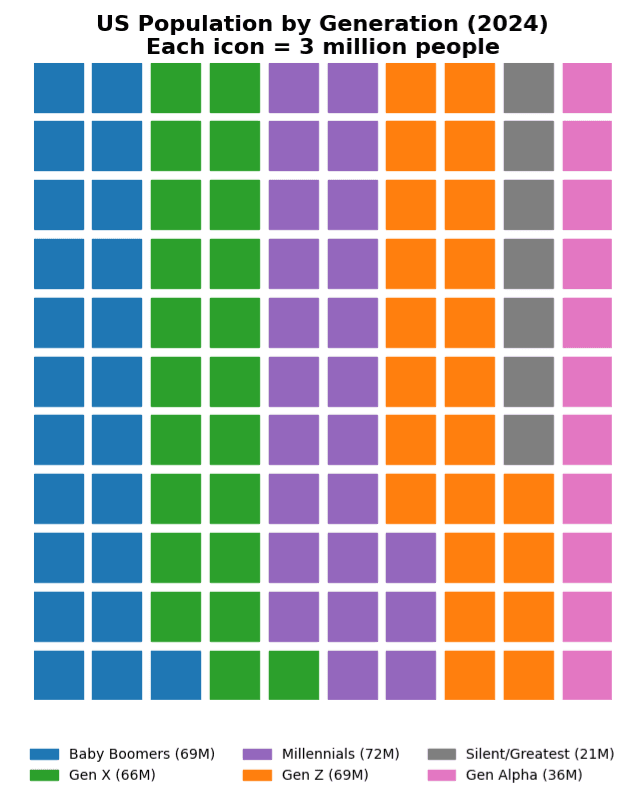
"Create a dot matrix chart (waffle chart) showing 'US Population by Generation' where each icon represents 3 million people. Generate data for 330M total population: Baby Boomers (70M, 23 icons, blue), Gen X (65M, 22 icons, green), Millennials (72M, 24 icons, purple), Gen Z (68M, 23 icons, orange), Silent/Greatest (20M, 7 icons, gray), Gen Alpha (35M, 12 icons, pink). Arrange in a 10x11 grid (110 icons = 330M). Group icons by generation in contiguous blocks. Use person-shaped icons (fontawesome style) instead of squares. Add a legend showing generation names and birth years. Include population counts. Title: 'US Population by Generation (2024)'. Subtitle: 'Each figure = 3 million people'."
How to create this chart with your data
Upload Data
Upload your Excel or CSV file. Data used to generate charts is sent to Plotivy's server for processing.
AI Generation
Our AI analyzes your data and generates the Dot Matrix Chart code automatically.
Customize & Export
Tweak the design with natural language, then export as high-res PNG, SVG or PDF.
Newsletter
Get one weekly tip for better dot matrix charts
Join researchers receiving concise Python plotting techniques to improve chart clarity and reduce revision cycles.
Python Code Example
# === IMPORTS ===
import pandas as pd
import numpy as np
import matplotlib.pyplot as plt
from pywaffle import Waffle

# === USER-EDITABLE PARAMETERS ===
title = "US Population by Generation (2024)\nEach icon = 3 million people"
figsize = (12, 8)

# === EXAMPLE DATASET ===
# Population data in millions
data = {
    'Generation': ['Baby Boomers', 'Gen X', 'Millennials', 'Gen Z', 'Silent/Greatest', 'Gen Alpha'],
    'Population_M': [70, 65, 72, 68, 20, 35],
    'Color': ['#1f77b4', '#2ca02c', '#9467bd', '#ff7f0e', '#7f7f7f', '#e377c2']
}

df = pd.DataFrame(data)
df['Icons'] = (df['Population_M'] / 3).round().astype(int)

# Print summary
print("=== US Population by Generation ===")
print(f"\nTotal Population: {df['Population_M'].sum()}M")
print(f"Total Icons: {df['Icons'].sum()} (each = 3M people)")
print(f"\nBreakdown:")
for _, row in df.iterrows():
    print(f"  {row['Generation']}: {row['Population_M']}M ({row['Icons']} icons)")

# Create waffle data dictionary
waffle_data = {row['Generation']: row['Icons'] for _, row in df.iterrows()}
waffle_colors = {row['Generation']: row['Color'] for _, row in df.iterrows()}

# === CREATE WAFFLE CHART ===
fig = plt.figure(
    FigureClass=Waffle,
    rows=11,
    columns=10,
    values=waffle_data,
    colors=list(waffle_colors.values()),
    title={'label': title, 'fontsize': 16, 'fontweight': 'bold'},
    labels=[f"{k} ({v*3}M)" for k, v in waffle_data.items()],
    legend={
        'loc': 'lower center',
        'bbox_to_anchor': (0.5, -0.15),
        'ncol': 3,
        'fontsize': 10,
        'framealpha': 0
    },
    figsize=figsize,
    block_arranging_style='snake'
)

plt.tight_layout()
plt.show()
# END-OF-CODE
Opens the Analyze page with this code pre-loaded and ready to execute
Console Output
=== US Population by Generation ===

Total Population: 330M
Total Icons: 111 (each = 3M people)

Breakdown:
  Baby Boomers: 70M (23 icons)
  Gen X: 65M (22 icons)
  Millennials: 72M (24 icons)
  Gen Z: 68M (23 icons)
  Silent/Greatest: 20M (7 icons)
  Gen Alpha: 35M (12 icons)
Common Use Cases
- 1Survey result display
- 2Population statistics
- 3Progress tracking
- 4Infographic elements
Pro Tips
Use 100 units for percentage display
Choose meaningful unit size
Add legend explaining unit value
Frequently asked questions
When should you use a dot matrix chart?
Dot matrix charts (waffle charts) represent data as grids of symbols where each symbol represents a fixed quantity. They provide an intuitive way to show proportions and make large numbers comprehensible by breaking them into countable units. Common applications include survey result display, population statistics, and progress tracking.
Which Python libraries can create a dot matrix chart?
A dot matrix chart can be built in Python with pywaffle and matplotlib — pywaffle and matplotlib for precise control over axes, annotations, and journal styling. In Plotivy you describe the figure and it writes the pywaffle code for you.
Can I make a dot matrix chart without writing Python code?
Yes. Describe the dot matrix chart you need in plain language and upload your dataset — Plotivy's AI writes the Python code and renders a publication-ready figure. You still get the full, editable pywaffle source, so nothing is locked in a black box.
What are best practices for a clear dot matrix chart?
Use 100 units for percentage display. Choose meaningful unit size.
Library comparison for this chart
pywaffle
Useful in specialized workflows that complement core Python plotting libraries for dot-matrix-chart analysis tasks.
matplotlib
Best when you need full control over axis formatting, annotation placement, and journal-specific styling for dot-matrix-chart.
Scientific Chart Selection Cheat Sheet
Not sure whether to use a Violin Plot, Box Plot, or Ridge Plot? Download our single-page reference mapping the most-used scientific chart types, exactly when to use them, and the core Matplotlib/Seaborn functions.