Multi-set Bar Chart
Chart overview
Multi-set bar charts - also called grouped or clustered bar charts - display several data series side by side within each category, so you can directly compare groups across the same set of categories.
Key points
- In Python they are typically built with Matplotlib by offsetting each series along the x-axis (bar positions = index +/- bar width), or more concisely with Seaborn's barplot using the hue parameter to split bars by a grouping variable.
- They shine when you need to compare a handful of series across categories - quarters, regions, treatment groups, or survey segments - and are the standard alternative to a stacked bar chart when the individual values, rather than their total, are what matter.
- Keep the number of series small (ideally 2-4) so the groups stay distinguishable, and order categories meaningfully (by value or time) to make patterns easy to read.
Create a Multi-set Bar Chart with your data using AI — no coding required.
Further reading
How to Create a Bar Chart in Python
Matplotlib, seaborn, and plotly patterns for grouped bars, error bars, and publication-ready labels.
Read the guideExample Visualization
Create This Chart Now
Generate publication-ready multi-set bar charts with AI in seconds. No coding required – just describe your data and let AI do the work.
View example prompt
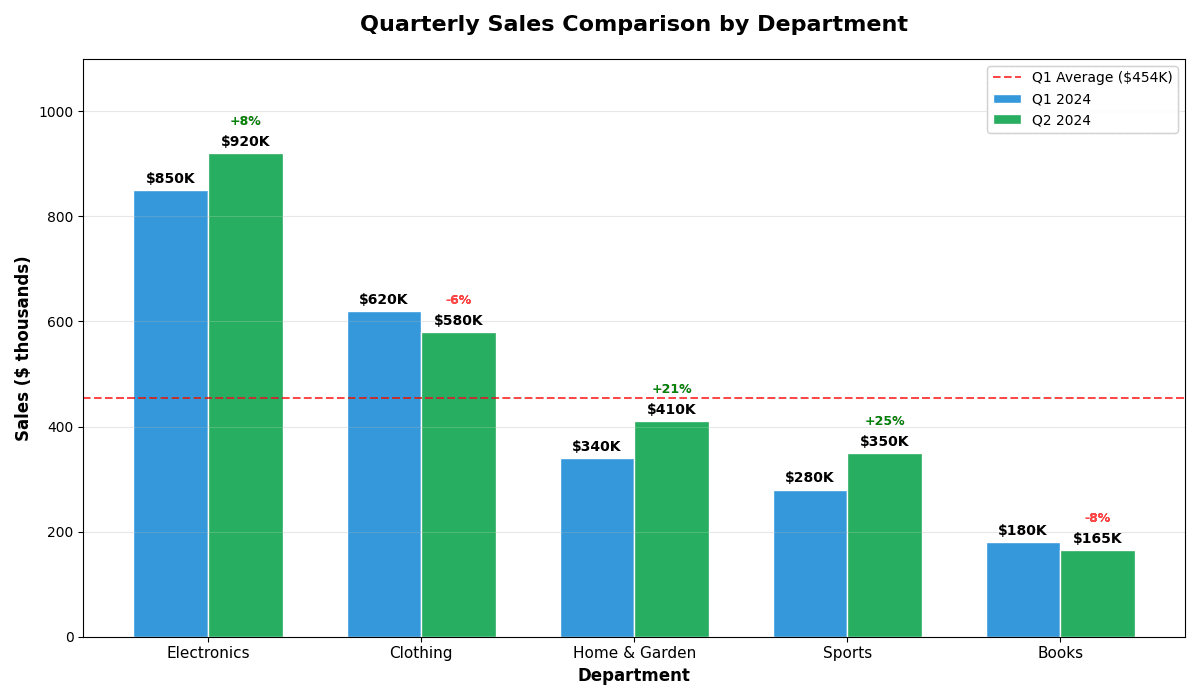
"Create a grouped bar chart comparing 'Quarterly Sales' (Q1 vs Q2) across 5 departments: Electronics, Clothing, Home & Garden, Sports, and Books. Generate realistic retail data in thousands: Electronics (Q1: $850K, Q2: $920K, +8%), Clothing (Q1: $620K, Q2: $580K, -6%), Home (Q1: $340K, Q2: $410K, +21%), Sports (Q1: $280K, Q2: $350K, +25%), Books (Q1: $180K, Q2: $165K, -8%). Use side-by-side bars with Q1 in blue and Q2 in green. Add value labels above each bar. Include a horizontal reference line at the overall Q1 average. Add percentage change annotations. Group labels on X-axis, Y-axis as 'Sales ($ thousands)'. Add legend and title 'Quarterly Sales Comparison by Department'."
How to create this chart with your data
Upload Data
Upload your Excel or CSV file. Data used to generate charts is sent to Plotivy's server for processing.
AI Generation
Our AI analyzes your data and generates the Multi-set Bar Chart code automatically.
Customize & Export
Tweak the design with natural language, then export as high-res PNG, SVG or PDF.
Newsletter
Get one weekly tip for better multi-set bar charts
Join researchers receiving concise Python plotting techniques to improve chart clarity and reduce revision cycles.
Python Code Example
# === IMPORTS ===
import pandas as pd
import numpy as np
import matplotlib.pyplot as plt
import seaborn as sns

# === USER-EDITABLE PARAMETERS ===
title = "Quarterly Sales Comparison by Department"
figsize = (12, 7)

# === EXAMPLE DATASET ===
departments = ['Electronics', 'Clothing', 'Home & Garden', 'Sports', 'Books']
q1_sales = [850, 620, 340, 280, 180]  # In thousands
q2_sales = [920, 580, 410, 350, 165]

# Changes
changes = [(q2 - q1) / q1 * 100 for q1, q2 in zip(q1_sales, q2_sales)]

df = pd.DataFrame({
    'Department': departments,
    'Q1': q1_sales,
    'Q2': q2_sales,
    'Change': changes
})

# Print summary
print("=== Quarterly Sales Comparison ===")
print(f"\nDepartment       | Q1 ($K) | Q2 ($K) | Change")
print("-" * 50)
for _, row in df.iterrows():
    print(f"{row['Department']:15} | {row['Q1']:7} | {row['Q2']:7} | {row['Change']:+.1f}%")
print(f"\nQ1 Total: ${sum(q1_sales):,}K")
print(f"Q2 Total: ${sum(q2_sales):,}K")
print(f"Overall Change: {(sum(q2_sales) - sum(q1_sales)) / sum(q1_sales) * 100:+.1f}%")

# === CREATE GROUPED BAR CHART ===
fig, ax = plt.subplots(figsize=figsize)

x = np.arange(len(departments))
width = 0.35

# Create bars
bars1 = ax.bar(x - width/2, q1_sales, width, label='Q1 2024', color='#3498db', edgecolor='white')
bars2 = ax.bar(x + width/2, q2_sales, width, label='Q2 2024', color='#27ae60', edgecolor='white')

# Add value labels on bars
for bar in bars1:
    height = bar.get_height()
    ax.annotate(f'${height}K',
                xy=(bar.get_x() + bar.get_width() / 2, height),
                xytext=(0, 3), textcoords="offset points",
                ha='center', va='bottom', fontsize=10, fontweight='bold')

for i, bar in enumerate(bars2):
    height = bar.get_height()
    ax.annotate(f'${height}K',
                xy=(bar.get_x() + bar.get_width() / 2, height),
                xytext=(0, 3), textcoords="offset points",
                ha='center', va='bottom', fontsize=10, fontweight='bold')
    # Add change percentage
    ax.annotate(f'{changes[i]:+.0f}%',
                xy=(bar.get_x() + bar.get_width() / 2, height + 40),
                xytext=(0, 3), textcoords="offset points",
                ha='center', va='bottom', fontsize=9,
                color='green' if changes[i] > 0 else 'red',
                fontweight='bold')

# Reference line at Q1 average
q1_avg = np.mean(q1_sales)
ax.axhline(y=q1_avg, color='red', linestyle='--', alpha=0.7,
           label=f'Q1 Average (${q1_avg:.0f}K)')

# Styling
ax.set_xlabel('Department', fontsize=12, fontweight='bold')
ax.set_ylabel('Sales ($ thousands)', fontsize=12, fontweight='bold')
ax.set_title(title, fontsize=16, fontweight='bold', pad=20)
ax.set_xticks(x)
ax.set_xticklabels(departments, fontsize=11)
ax.legend(loc='upper right', framealpha=0.9)
ax.set_ylim(0, 1100)
ax.grid(True, alpha=0.3, axis='y')

plt.tight_layout()
plt.show()
# END-OF-CODE
Opens the Analyze page with this code pre-loaded and ready to execute
Console Output
=== Quarterly Sales Comparison ===

Department       | Q1 ($K) | Q2 ($K) | Change
--------------------------------------------------
Electronics     |     850 |     920 | +8.2%
Clothing        |     620 |     580 | -6.5%
Home & Garden   |     340 |     410 | +20.6%
Sports          |     280 |     350 | +25.0%
Books           |     180 |     165 | -8.3%

Q1 Total: $2,270K
Q2 Total: $2,425K
Overall Change: +6.8%
Common Use Cases
- 1Year-over-year comparisons
- 2A/B test results
- 3Multi-group performance analysis
- 4Survey results by demographic
- 5Region or branch comparisons
- 6Treatment vs control across conditions
Pro Tips
Limit to 3-4 groups for readability
Use distinct colors for each group
Add a legend for clarity
Offset bars by index +/- bar_width in Matplotlib, or use Seaborn's hue parameter
Sort categories by value or time so trends read left to right
Add value labels when exact numbers matter more than the visual gestalt
Frequently asked questions
When should you use a multi-set bar chart?
Multi-set bar charts - also called grouped or clustered bar charts - display several data series side by side within each category, so you can directly compare groups across the same set of categories. In Python they are typically built with Matplotlib by offsetting each series along the x-axis (bar positions = index +/- bar width), or more concisely with Seaborn's barplot using the hue parameter to split bars by a grouping variable. Common applications include year-over-year comparisons, a/B test results, and multi-group performance analysis.
Which Python libraries can create a multi-set bar chart?
A multi-set bar chart can be built in Python with matplotlib and seaborn — matplotlib for precise control over axes, annotations, and journal styling and seaborn for statistically-aware defaults on tidy data. In Plotivy you describe the figure and it writes the matplotlib code for you.
Can I make a multi-set bar chart without writing Python code?
Yes. Describe the multi-set bar chart you need in plain language and upload your dataset — Plotivy's AI writes the Python code and renders a publication-ready figure. You still get the full, editable matplotlib source, so nothing is locked in a black box.
What are best practices for a clear multi-set bar chart?
Limit to 3-4 groups for readability. Use distinct colors for each group.
Library comparison for this chart
matplotlib
Best when you need full control over axis formatting, annotation placement, and journal-specific styling for multi-set-bar-chart.
seaborn
Fastest path to statistically-aware defaults and tidy-data workflows, especially for grouped and distribution-focused multi-set-bar-chart views.
Scientific Chart Selection Cheat Sheet
Not sure whether to use a Violin Plot, Box Plot, or Ridge Plot? Download our single-page reference mapping the most-used scientific chart types, exactly when to use them, and the core Matplotlib/Seaborn functions.