Stacked Bar Graph
Chart overview
Stacked bar charts display multiple data series as segments within a single bar, showing both the total and the composition for each category.
Key points
- They effectively communicate part-to-whole relationships and enable comparison of totals across categories.
- Their weakness is just as specific: only the bottom segment and the total sit on a common baseline, so readers compare those two accurately while every middle segment floats, making its changes across bars hard to judge (Cleveland and McGill's position-versus-length hierarchy).
- Put the series whose trend matters most at the bottom, keep it to 3-5 segments, and order the rest by size or logical sequence rather than alphabetically.
Practical guidance
df. plot(kind='bar', stacked=True) is the pandas one-liner; in raw matplotlib, accumulate a bottom= running total per series. Use the 100% stacked variant (divide each row by its total) when composition is the message and totals are noise - but then report totals somewhere else, because the normalization hides them. If readers must compare each individual series across categories, grouped bars or small multiples of simple bars beat a stack; for many time periods, a stacked area chart is usually the better form.
Create a Stacked Bar Graph with your data using AI — no coding required.
Further reading
How to Create a Bar Chart in Python
Matplotlib, seaborn, and plotly patterns for grouped bars, error bars, and publication-ready labels.
Read the guideExample Visualization
Create This Chart Now
Generate publication-ready stacked bar graphs with AI in seconds. No coding required – just describe your data and let AI do the work.
View example prompt
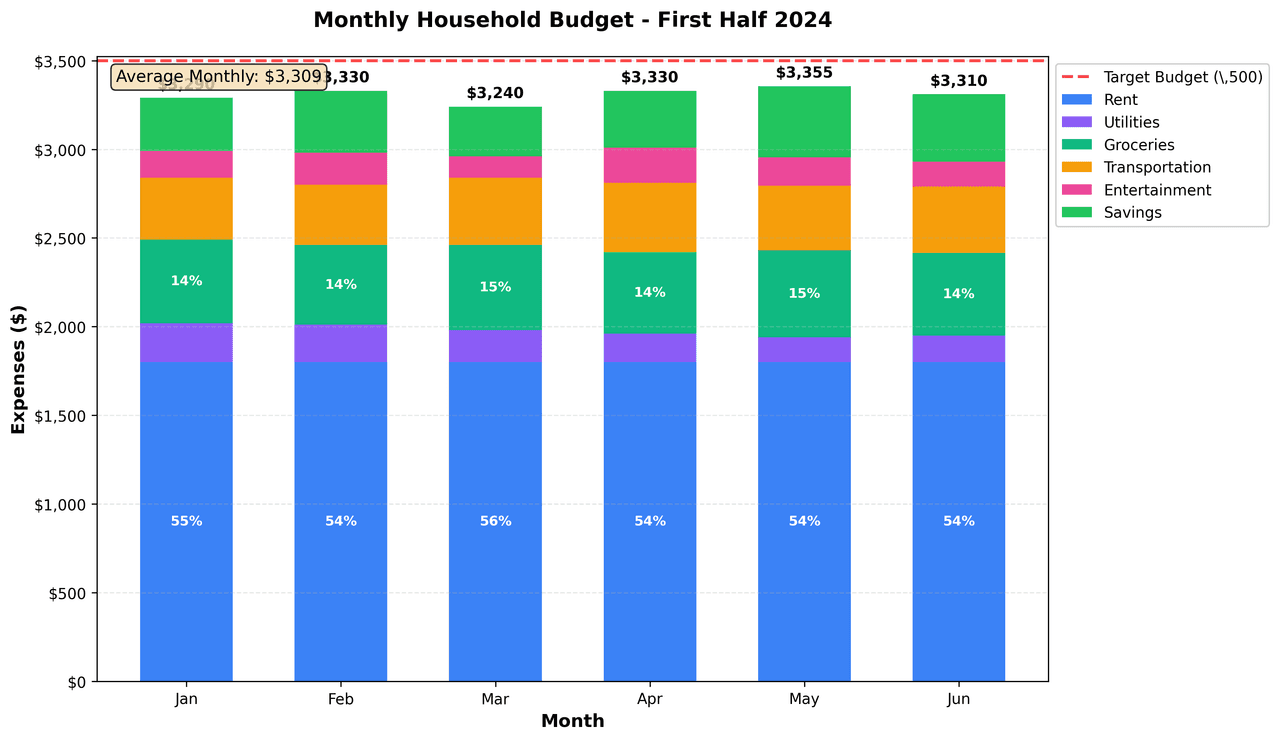
"Create a professional stacked bar chart showing 'Monthly Expenses Breakdown' for a household budget over 6 months (Jan-Jun). Generate realistic budget data in dollars: Rent ($1,800 fixed), Utilities ($150-250 seasonal), Groceries ($400-500), Transportation ($300-400), Entertainment ($100-200), Savings ($200-400). Stack order from bottom: essential (rent, utilities, groceries) to discretionary (entertainment, savings). Use a professional color palette (blues, purples, greens, oranges). Add bold total expense labels above each bar. Include a red dashed horizontal target budget line at $3,500. Add percentage labels inside segments exceeding 10% of total, in white text for readability. Legend positioned outside the plot. Title: 'Monthly Household Budget - First Half 2024'. Add a highlighted annotation box in the top-left showing the average monthly expense. Grid lines on Y-axis only. Format Y-axis as currency."
How to create this chart with your data
Upload Data
Upload your Excel or CSV file. Data used to generate charts is sent to Plotivy's server for processing.
AI Generation
Our AI analyzes your data and generates the Stacked Bar Graph code automatically.
Customize & Export
Tweak the design with natural language, then export as high-res PNG, SVG or PDF.
Newsletter
Get one weekly tip for better stacked bar graphs
Join researchers receiving concise Python plotting techniques to improve chart clarity and reduce revision cycles.
Python Code Example
# === IMPORTS ===
import pandas as pd
import plotly.graph_objects as go
import numpy as np

# === USER-EDITABLE PARAMETERS ===
months = ['Jan', 'Feb', 'Mar', 'Apr', 'May', 'Jun']  # Change: months on x-axis
order = ['Rent', 'Utilities', 'Groceries', 'Transportation', 'Entertainment', 'Savings']  # Change: stack order (bottom to top)
colors = {  # Change: professional categorical palette (hex codes only)
    'Rent': '#4e79a7',
    'Utilities': '#f28e2b',
    'Groceries': '#e15759',
    'Transportation': '#76b7b2',
    'Entertainment': '#59a14f',
    'Savings': '#edc948'
}
target_budget = 3500  # Change: horizontal target budget line value
title_fontsize = 18  # Change: title font size
label_fontsize = 16  # Change: axis labels and ticks font size
show_percent_labels = True  # Change: toggle percentage labels inside segments (>10%)
min_pct_threshold = 0.1  # Change: minimum segment percentage for label

# Change: Generate realistic data here (lists matching months length)
rent = [1800, 1800, 1800, 1800, 1800, 1800]
utilities = [150, 170, 200, 230, 250, 240]
groceries = [400, 420, 440, 460, 480, 500]
transportation = [300, 320, 340, 360, 380, 400]
entertainment = [100, 130, 150, 170, 190, 200]
savings = [200, 250, 300, 350, 380, 400]

# Data preparation: Create wide-format DataFrame
data_dict = {
    'Month': months,
    'Rent': rent,
    'Utilities': utilities,
    'Groceries': groceries,
    'Transportation': transportation,
    'Entertainment': entertainment,
    'Savings': savings
}
df_wide = pd.DataFrame(data_dict)
df_wide['Total'] = df_wide[order].sum(axis=1)

# Calculate key statistics
totals = df_wide['Total'].tolist()
avg_expense = np.mean(totals)

# Print relevant analysis results
print(f"Average monthly expense: ${avg_expense:.0f}")
print("Monthly totals:")
for month, total in zip(months, totals):
    print(f"  {month}: ${total:.0f}")
print(f"Target budget: ${target_budget:,}")
print(f"Months over target: {sum(1 for t in totals if t > target_budget)} / {len(months)}")

# Create stacked bar chart using go.Bar
fig = go.Figure()
for cat in order:
    fig.add_trace(go.Bar(
        name=cat,
        x=months,
        y=df_wide[cat],
        marker_color=colors[cat],
        marker_line_color='rgba(0,0,0,0.1)',
        marker_line_width=0.5
    ))

# Update layout for professional styling
fig.update_layout(
    barmode='stack',
    title=dict(
        text='Monthly Household Budget - First Half 2024',
        x=0.5,
        xanchor='center',
        y=0.98,
        font_size=title_fontsize
    ),
    xaxis_title='Month',
    yaxis_title='Expenses ($)',
    font=dict(size=label_fontsize),
    margin=dict(t=130, b=90, l=80, r=150),  # Extra right margin for external legend
    legend=dict(
        x=1.02,
        y=0.5,
        xanchor='left',
        yanchor='middle',
        bgcolor='rgba(255,255,255,0.95)',
        bordercolor='rgba(150,150,150,0.5)',
        borderwidth=1,
        font=dict(size=label_fontsize-2)
    ),
    hovermode='x unified'
)

# Add total expense labels above each bar
for i, month in enumerate(months):
    fig.add_annotation(
        x=month,
        y=totals[i],
        text=f'${totals[i]:,.0f}',
        showarrow=False,
        yshift=20,
        xanchor='center',
        yanchor='bottom',
        font=dict(size=12, color='#000000', family='Arial Black'),
        bgcolor='rgba(255,255,255,0.9)'
    )

# Add horizontal target budget line
fig.add_hline(
    y=target_budget,
    line_dash='dash',
    line_color='#d62728',
    line_width=2,
    annotation_text=f'Target Budget: ${target_budget:,}',
    annotation_position='right',
    annotation_font_size=label_fontsize-2
)

# Add average expense line and annotation
avg_color = '#2ca02c'
fig.add_hline(
    y=avg_expense,
    line_dash='dot',
    line_color=avg_color,
    line_width=2,
    annotation_text=f'Average Monthly Expense: ${avg_expense:.0f}',
    annotation_position='right',
    annotation_font_size=label_fontsize-2
)

# Add percentage labels inside large segments (>10% of total)
if show_percent_labels:
    for i, month in enumerate(months):
        total = totals[i]
        bottom = 0
        for cat in order:
            height = df_wide.iloc[i][cat]
            if (height / total) > min_pct_threshold:
                mid_y = bottom + height / 2
                pct = 100 * height / total
                fig.add_annotation(
                    x=month,
                    y=mid_y,
                    text=f'{pct:.0f}%',
                    showarrow=False,
                    xanchor='center',
                    yanchor='middle',
                    font=dict(size=11, color='#000000'),
                    bgcolor='rgba(255,255,255,0.9)',
                    bordercolor='rgba(255,255,255,1)',
                    borderwidth=1,
                    borderpad=4
                )
            bottom += height

fig.show()
# END-OF-CODEOpens the Analyze page with this code pre-loaded and ready to execute
Console Output
Total 6-Month Expenses: $20,305
Average Monthly: $3,384
Months over budget: 2
Total Savings: $2,030
Common Use Cases
- 1Budget breakdown visualization
- 2Survey response composition
- 3Sales by product and region
- 4Resource utilization by category
Pro Tips
Limit to 5-7 segments per bar
Use consistent colors across bars
Consider horizontal layout for many categories
Frequently asked questions
When should you use a stacked bar graph?
Stacked bar charts display multiple data series as segments within a single bar, showing both the total and the composition for each category. They effectively communicate part-to-whole relationships and enable comparison of totals across categories. Common applications include budget breakdown visualization, survey response composition, and sales by product and region.
Which Python libraries can create a stacked bar graph?
A stacked bar graph can be built in Python with matplotlib and pandas — matplotlib for precise control over axes, annotations, and journal styling and pandas for quick plots straight from a DataFrame. In Plotivy you describe the figure and it writes the matplotlib code for you.
Can I make a stacked bar graph without writing Python code?
Yes. Describe the stacked bar graph you need in plain language and upload your dataset — Plotivy's AI writes the Python code and renders a publication-ready figure. You still get the full, editable matplotlib source, so nothing is locked in a black box.
What are best practices for a clear stacked bar graph?
Limit to 5-7 segments per bar. Use consistent colors across bars.
Library comparison for this chart
matplotlib
Best when you need full control over axis formatting, annotation placement, and journal-specific styling for stacked-bar-graph.
pandas
Good for quick exploratory drafts directly from DataFrame operations before polishing in matplotlib or plotly.
Scientific Chart Selection Cheat Sheet
Not sure whether to use a Violin Plot, Box Plot, or Ridge Plot? Download our single-page reference mapping the most-used scientific chart types, exactly when to use them, and the core Matplotlib/Seaborn functions.