Time Table
Chart overview
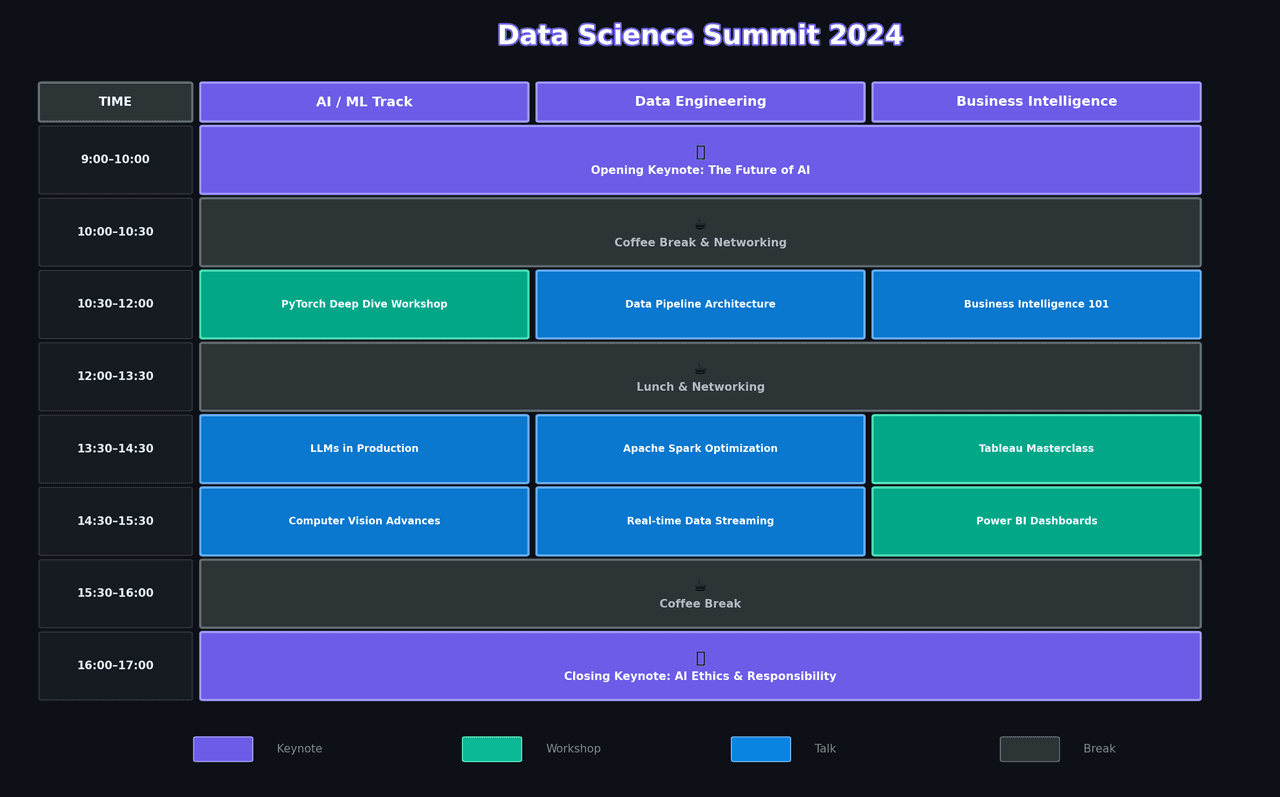
Time tables display schedules in a structured tabular format, showing events, times, and associated details.
Key points
- Modern Python libraries enable creation of beautifully styled schedule displays suitable for conferences, classes, or project planning.
- A time table is the right format when readers need to look up a specific slot ('what is on at 2pm in room B?
- ') rather than perceive duration or overlap visually — that is a lookup task, and a well-structured table beats any chart for lookups.
Practical guidance
When the question shifts to 'how long does each session run' or 'which tracks conflict', switch to a Gantt chart or a resource-timeline where bar length encodes duration. In Python, build the schedule as a tidy pandas DataFrame (one row per event with start, end, track, and title columns) and render it with great_tables or plottable for conditional formatting: color-code rows by track or category, add a computed duration column, and group by time block or day with spanner headers. Keep time in a sortable 24-hour or ISO format internally even if you display 12-hour labels, freeze the header row for long schedules, and make sure category colors survive grayscale printing for attendees who print the program.
Create a Time Table with your data using AI — no coding required.
Further reading
How to Plot Time Series Data in Python
Date axis formatting, rolling statistics, trend overlays, and multi-series patterns.
Read the guideExample Visualization
Create This Chart Now
Generate publication-ready time tables with AI in seconds. No coding required – just describe your data and let AI do the work.
View example prompt
"Create a beautifully formatted conference schedule timetable for a 'Data Science Summit' spanning 2 days. Generate a realistic program: Day 1 has 3 tracks (AI/ML, Data Engineering, Business Intelligence) with sessions from 9:00 AM to 5:00 PM. Day 2 has keynotes and workshops. Include sessions like 'Opening Keynote: Future of AI' (9:00-10:00, Main Hall, Dr. Sarah Chen), 'Hands-on PyTorch Workshop' (10:30-12:00, Room A, 40 attendees max), 'Lunch & Networking' (12:00-1:30), etc. Format as a grid with time slots as rows, tracks as columns. Color-code by session type: Keynote (gold), Workshop (blue), Talk (green), Break (gray). Include room location and speaker name. Add capacity indicators. Title: 'Data Science Summit 2024 - Conference Schedule'."
How to create this chart with your data
Upload Data
Upload your Excel or CSV file. Data used to generate charts is sent to Plotivy's server for processing.
AI Generation
Our AI analyzes your data and generates the Time Table code automatically.
Customize & Export
Tweak the design with natural language, then export as high-res PNG, SVG or PDF.
Newsletter
Get one weekly tip for better time tables
Join researchers receiving concise Python plotting techniques to improve chart clarity and reduce revision cycles.
Python Code Example
# === IMPORTS ===
import numpy as np
import matplotlib.pyplot as plt
from matplotlib.patches import Rectangle, FancyBboxPatch
import matplotlib.patheffects as pe

# === USER-EDITABLE PARAMETERS ===
title = "Data Science Summit 2024"
figsize = (16, 10)

# === EXAMPLE DATASET ===
schedule = [
    {'time': '9:00–10:00', 'sessions': [
        ('Opening Keynote: The Future of AI', 'Keynote', True, True, True),
    ]},
    {'time': '10:00–10:30', 'sessions': [
        ('Coffee Break & Networking', 'Break', True, True, True),
    ]},
    {'time': '10:30–12:00', 'sessions': [
        ('PyTorch Deep Dive Workshop', 'Workshop', False, False, False),
        ('Data Pipeline Architecture', 'Talk', False, False, False),
        ('Business Intelligence 101', 'Talk', False, False, False),
    ]},
    {'time': '12:00–13:30', 'sessions': [
        ('Lunch & Networking', 'Break', True, True, True),
    ]},
    {'time': '13:30–14:30', 'sessions': [
        ('LLMs in Production', 'Talk', False, False, False),
        ('Apache Spark Optimization', 'Talk', False, False, False),
        ('Tableau Masterclass', 'Workshop', False, False, False),
    ]},
    {'time': '14:30–15:30', 'sessions': [
        ('Computer Vision Advances', 'Talk', False, False, False),
        ('Real-time Data Streaming', 'Talk', False, False, False),
        ('Power BI Dashboards', 'Workshop', False, False, False),
    ]},
    {'time': '15:30–16:00', 'sessions': [
        ('Coffee Break', 'Break', True, True, True),
    ]},
    {'time': '16:00–17:00', 'sessions': [
        ('Closing Keynote: AI Ethics & Responsibility', 'Keynote', True, True, True),
    ]},
]

tracks = ['AI / ML Track', 'Data Engineering', 'Business Intelligence']

# Print summary
print("=== Conference Schedule ===")
print(f"\nTracks: {len(tracks)}")
print(f"Time Slots: {len(schedule)}")

# === CREATE TIMETABLE ===
fig, ax = plt.subplots(figsize=figsize, facecolor='#0d1117')
ax.set_facecolor('#0d1117')

# Colors
colors = {
    'Keynote': {'bg': '#6c5ce7', 'border': '#a29bfe', 'text': 'white'},
    'Workshop': {'bg': '#00b894', 'border': '#55efc4', 'text': 'white'},
    'Talk': {'bg': '#0984e3', 'border': '#74b9ff', 'text': 'white'},
    'Break': {'bg': '#2d3436', 'border': '#636e72', 'text': '#b2bec3'}
}

# Grid dimensions
cell_height = 1.0
cell_width = 2.5
time_width = 1.2
header_height = 0.6
n_rows = len(schedule)

# Draw header
for j, track in enumerate(tracks):
    x = time_width + j * cell_width
    box = FancyBboxPatch((x + 0.05, n_rows + 0.05), cell_width - 0.1, header_height - 0.1,
                          boxstyle="round,pad=0.02", facecolor='#6c5ce7',
                          edgecolor='#a29bfe', linewidth=2)
    ax.add_patch(box)
    ax.text(x + cell_width/2, n_rows + header_height/2, track,
            fontsize=12, fontweight='bold', color='white',
            ha='center', va='center')

# Time column header
box = FancyBboxPatch((0.05, n_rows + 0.05), time_width - 0.1, header_height - 0.1,
                      boxstyle="round,pad=0.02", facecolor='#2d3436',
                      edgecolor='#636e72', linewidth=2)
ax.add_patch(box)
ax.text(time_width/2, n_rows + header_height/2, 'TIME',
        fontsize=11, fontweight='bold', color='white',
        ha='center', va='center')

# Draw schedule rows
for i, row in enumerate(schedule):
    y = n_rows - i - 1

    # Time cell
    box = FancyBboxPatch((0.05, y + 0.05), time_width - 0.1, cell_height - 0.1,
                          boxstyle="round,pad=0.02", facecolor='#161b22',
                          edgecolor='#30363d', linewidth=1)
    ax.add_patch(box)
    ax.text(time_width/2, y + cell_height/2, row['time'],
            fontsize=10, fontweight='bold', color='#e6edf3',
            ha='center', va='center')

    sessions = row['sessions']

    if len(sessions) == 1 and sessions[0][2]:  # Spans all tracks
        session = sessions[0]
        style = colors[session[1]]
        x = time_width
        width = cell_width * 3

        box = FancyBboxPatch((x + 0.05, y + 0.05), width - 0.1, cell_height - 0.1,
                              boxstyle="round,pad=0.02", facecolor=style['bg'],
                              edgecolor=style['border'], linewidth=2)
        ax.add_patch(box)

        # Session icon
        icon = '🎤' if session[1] == 'Keynote' else '☕' if session[1] == 'Break' else '💡'
        ax.text(x + width/2, y + cell_height/2 + 0.1, icon,
                fontsize=14, ha='center', va='center')
        ax.text(x + width/2, y + cell_height/2 - 0.15, session[0],
                fontsize=10, fontweight='bold', color=style['text'],
                ha='center', va='center', wrap=True)
    else:
        for j, session in enumerate(sessions):
            x = time_width + j * cell_width
            style = colors[session[1]]

            box = FancyBboxPatch((x + 0.05, y + 0.05), cell_width - 0.1, cell_height - 0.1,
                                  boxstyle="round,pad=0.02", facecolor=style['bg'],
                                  edgecolor=style['border'], linewidth=2, alpha=0.9)
            ax.add_patch(box)

            # Session title (wrapped)
            title_lines = session[0].split(' ')
            if len(title_lines) > 4:
                line1 = ' '.join(title_lines[:3])
                line2 = ' '.join(title_lines[3:])
                ax.text(x + cell_width/2, y + cell_height/2 + 0.1, line1,
                        fontsize=9, fontweight='bold', color=style['text'],
                        ha='center', va='center')
                ax.text(x + cell_width/2, y + cell_height/2 - 0.15, line2,
                        fontsize=9, fontweight='bold', color=style['text'],
                        ha='center', va='center')
            else:
                ax.text(x + cell_width/2, y + cell_height/2, session[0],
                        fontsize=9, fontweight='bold', color=style['text'],
                        ha='center', va='center')

# Title
ax.text(time_width + (3 * cell_width)/2, n_rows + header_height + 0.5, title,
        fontsize=24, fontweight='bold', color='white', ha='center',
        path_effects=[pe.withStroke(linewidth=3, foreground='#6c5ce7')])

# Legend
legend_y = -0.8
for idx, (session_type, style) in enumerate(colors.items()):
    x = time_width + idx * 2
    box = FancyBboxPatch((x, legend_y), 0.4, 0.3,
                          boxstyle="round,pad=0.02", facecolor=style['bg'],
                          edgecolor=style['border'], linewidth=1)
    ax.add_patch(box)
    ax.text(x + 0.6, legend_y + 0.15, session_type, fontsize=10, color='#888',
            ha='left', va='center')

# Styling
ax.set_xlim(-0.2, time_width + 3 * cell_width + 0.5)
ax.set_ylim(-1.2, n_rows + header_height + 1)
ax.axis('off')

plt.tight_layout()
plt.savefig('chart.png', dpi=150, bbox_inches='tight', facecolor='#0d1117')
print("Saved: chart.png")
plt.show()
# END-OF-CODE
Opens the Analyze page with this code pre-loaded and ready to execute
Console Output
=== Conference Schedule ===

Tracks: 3
Time Slots: 8
Saved: chart.png
Common Use Cases
- 1Conference programs
- 2Class schedules
- 3Transportation timetables
- 4Event planning
Pro Tips
Group by time or track
Use color for categories
Include duration indicators
Frequently asked questions
When should you use a time table?
Time tables display schedules in a structured tabular format, showing events, times, and associated details. Modern Python libraries enable creation of beautifully styled schedule displays suitable for conferences, classes, or project planning. Common applications include conference programs, class schedules, and transportation timetables.
Which Python libraries can create a time table?
A time table can be built in Python with pandas, great-tables, and plottable — pandas for quick plots straight from a DataFrame, great-tables, and plottable. In Plotivy you describe the figure and it writes the pandas code for you.
Can I make a time table without writing Python code?
Yes. Describe the time table you need in plain language and upload your dataset — Plotivy's AI writes the Python code and renders a publication-ready figure. You still get the full, editable pandas source, so nothing is locked in a black box.
What are best practices for a clear time table?
Group by time or track. Use color for categories.
Library comparison for this chart
pandas
Good for quick exploratory drafts directly from DataFrame operations before polishing in matplotlib or plotly.
great-tables
Useful in specialized workflows that complement core Python plotting libraries for time-table analysis tasks.
plottable
Useful in specialized workflows that complement core Python plotting libraries for time-table analysis tasks.
Scientific Chart Selection Cheat Sheet
Not sure whether to use a Violin Plot, Box Plot, or Ridge Plot? Download our single-page reference mapping the most-used scientific chart types, exactly when to use them, and the core Matplotlib/Seaborn functions.