Venn Diagram
Chart overview
Venn diagrams use overlapping circles to show relationships between sets.
Key points
- They clearly display intersections, unique elements, and the overall composition of grouped data.
- A Venn diagram is the right tool for two or three sets when the message is qualitative — that overlaps exist and roughly how large they are — for example shared genes between conditions, common respondents across surveys, or overlapping feature sets.
- It stops working at four or more sets: no arrangement of circles can show all 15+ possible intersections, and ellipse-based four-set diagrams are nearly unreadable.
Practical guidance
That is exactly where UpSetPlot wins — it lays every intersection out as a bar chart with a dot matrix indicating which sets combine, scaling cleanly to dozens of sets while staying quantitatively accurate. Even for two or three sets, remember that a Venn's areas are only approximately proportional; matplotlib-venn's venn2/venn3 can size circles by set cardinality, but readers still cannot judge area precisely, so always print the actual count in each region. Keep fills semi-transparent so overlaps are visible, choose colorblind-safe hues since regions blend, and if precise counts are the real deliverable, pair the diagram with a small table or skip straight to UpSet.
Create a Venn Diagram with your data using AI — no coding required.
Further reading
Complete Guide to Scientific Data Visualization
Chart selection, figure design, and publication-ready workflows for scientific teams.
Read the guideExample Visualization
Create This Chart Now
Generate publication-ready venn diagrams with AI in seconds. No coding required – just describe your data and let AI do the work.
View example prompt
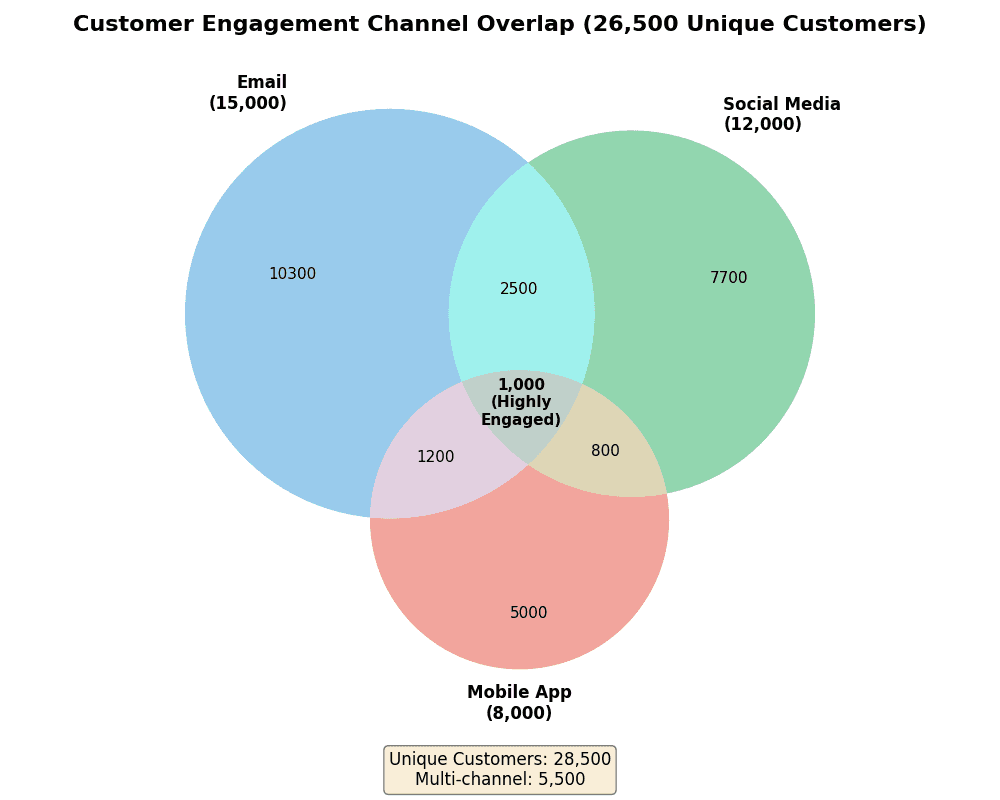
"Create a 3-circle Venn diagram showing 'Customer Segment Overlap' for a marketing analysis. Generate realistic customer data: Email Subscribers (Set A: 15,000), Social Media Followers (Set B: 12,000), Mobile App Users (Set C: 8,000). Overlaps: Email ∩ Social (3,500), Email ∩ App (2,200), Social ∩ App (1,800), All Three (1,000). Use semi-transparent fills: Email (blue, alpha=0.5), Social (green, alpha=0.5), App (red, alpha=0.5). Label each section with the count and percentage of total. Add set labels outside circles with total counts. Include a subtitle showing total unique customers (26,500). Use a clean white background. Title: 'Customer Engagement Channel Overlap'. Add annotation for the 'highly engaged' triple-overlap segment."
How to create this chart with your data
Upload Data
Upload your Excel or CSV file. Data used to generate charts is sent to Plotivy's server for processing.
AI Generation
Our AI analyzes your data and generates the Venn Diagram code automatically.
Customize & Export
Tweak the design with natural language, then export as high-res PNG, SVG or PDF.
Newsletter
Get one weekly tip for better venn diagrams
Join researchers receiving concise Python plotting techniques to improve chart clarity and reduce revision cycles.
Python Code Example
# === IMPORTS ===
import matplotlib.pyplot as plt
from matplotlib_venn import venn3

# === USER-EDITABLE PARAMETERS ===
title = "Customer Engagement Channel Overlap (26,500 Unique Customers)"
figsize = (10, 8)

# === EXAMPLE DATASET ===
# Customer counts by channel
email_only = 15000 - 3500 - 2200 + 1000  # Only email = 10,300
social_only = 12000 - 3500 - 1800 + 1000  # Only social = 7,700
app_only = 8000 - 2200 - 1800 + 1000  # Only app = 5,000
email_social = 3500 - 1000  # Email & Social only = 2,500
email_app = 2200 - 1000  # Email & App only = 1,200
social_app = 1800 - 1000  # Social & App only = 800
all_three = 1000

# Verify total
total = email_only + social_only + app_only + email_social + email_app + social_app + all_three
print("=== Customer Segment Overlap ===")
print(f"\nChannel Totals:")
print(f"  Email Subscribers: 15,000")
print(f"  Social Media Followers: 12,000")
print(f"  Mobile App Users: 8,000")
print(f"\nOverlaps:")
print(f"  Email ∩ Social: 3,500")
print(f"  Email ∩ App: 2,200")
print(f"  Social ∩ App: 1,800")
print(f"  All Three: 1,000 (highly engaged)")
print(f"\nTotal Unique Customers: {total:,}")

# === CREATE VENN DIAGRAM ===
fig, ax = plt.subplots(figsize=figsize)

# Create Venn diagram
v = venn3(
    subsets=(email_only, social_only, email_social, app_only, email_app, social_app, all_three),
    set_labels=('Email\n(15,000)', 'Social Media\n(12,000)', 'Mobile App\n(8,000)'),
    set_colors=('#3498db', '#27ae60', '#e74c3c'),
    alpha=0.5,
    ax=ax
)

# Customize labels
for text in v.set_labels:
    if text:
        text.set_fontsize(12)
        text.set_fontweight('bold')

for text in v.subset_labels:
    if text:
        text.set_fontsize(11)

# Add percentage annotations
v.get_label_by_id('111').set_text(f'{all_three:,}\n(Highly\nEngaged)')
v.get_label_by_id('111').set_fontweight('bold')

plt.title(title, fontsize=16, fontweight='bold', pad=20)

# Add summary annotation
summary_text = f"Unique Customers: {total:,}\nMulti-channel: {email_social + email_app + social_app + all_three:,}"
plt.annotate(summary_text, xy=(0.5, -0.1), xycoords='axes fraction',
             ha='center', fontsize=12,
             bbox=dict(boxstyle='round', facecolor='wheat', alpha=0.5))

plt.tight_layout()
plt.show()
# END-OF-CODE
Opens the Analyze page with this code pre-loaded and ready to execute
Console Output
=== Customer Segment Overlap ===

Channel Totals:
  Email Subscribers: 15,000
  Social Media Followers: 12,000
  Mobile App Users: 8,000

Overlaps:
  Email ∩ Social: 3,500
  Email ∩ App: 2,200
  Social ∩ App: 1,800
  All Three: 1,000 (highly engaged)

Total Unique Customers: 28,500
Common Use Cases
- 1Set intersection analysis
- 2Survey overlap visualization
- 3Feature comparison
- 4Gene set analysis
Pro Tips
Limit to 3 sets for clarity
Use UpSetPlot for 4+ sets
Add counts in each region
Frequently asked questions
When should you use a venn diagram?
Venn diagrams use overlapping circles to show relationships between sets. They clearly display intersections, unique elements, and the overall composition of grouped data. Common applications include set intersection analysis, survey overlap visualization, and feature comparison.
Which Python libraries can create a venn diagram?
A venn diagram can be built in Python with matplotlib-venn and upsetplot — matplotlib for precise control over axes, annotations, and journal styling and upsetplot. In Plotivy you describe the figure and it writes the matplotlib-venn code for you.
Can I make a venn diagram without writing Python code?
Yes. Describe the venn diagram you need in plain language and upload your dataset — Plotivy's AI writes the Python code and renders a publication-ready figure. You still get the full, editable matplotlib-venn source, so nothing is locked in a black box.
What are best practices for a clear venn diagram?
Limit to 3 sets for clarity. Use UpSetPlot for 4+ sets.
Library comparison for this chart
matplotlib-venn
Best when you need full control over axis formatting, annotation placement, and journal-specific styling for venn-diagram.
upsetplot
Useful in specialized workflows that complement core Python plotting libraries for venn-diagram analysis tasks.
Scientific Chart Selection Cheat Sheet
Not sure whether to use a Violin Plot, Box Plot, or Ridge Plot? Download our single-page reference mapping the most-used scientific chart types, exactly when to use them, and the core Matplotlib/Seaborn functions.