Stream Graph
Chart overview
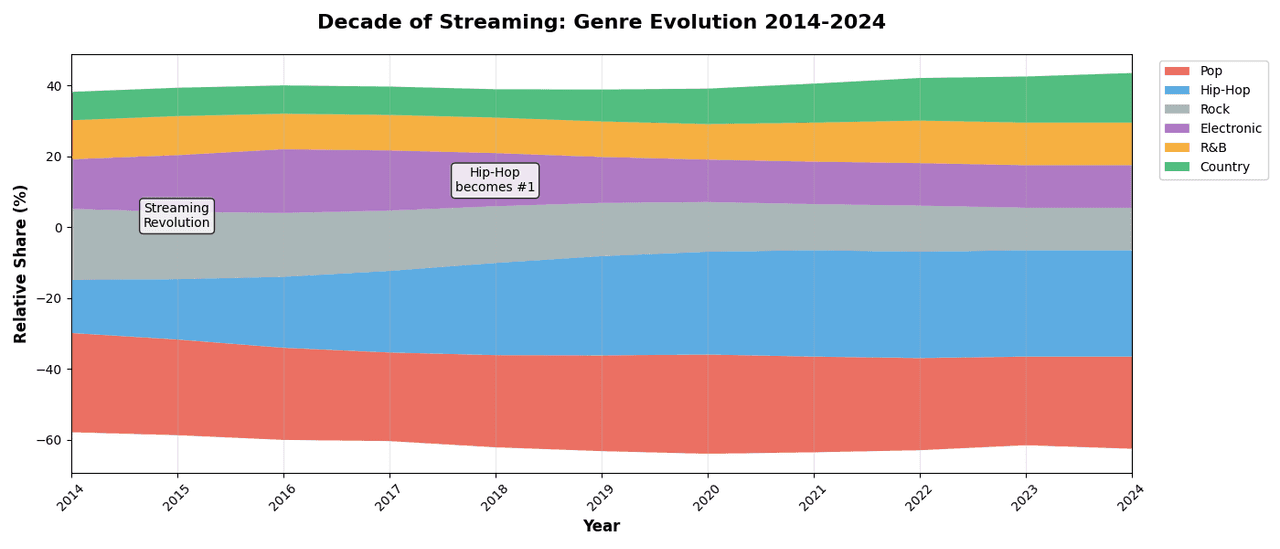
Stream graphs are a variation of stacked area charts where series flow around a central baseline rather than stacking from zero.
Key points
- This creates an organic, river-like appearance that emphasizes changes in composition over time while de-emphasizing absolute values.
- That trade is the whole decision: with no zero baseline, no individual series can be read precisely - only band thickness and the overall silhouette - so stream graphs suit editorial or exploratory shape-of-the-data stories (listening history, topic volume over years) and are a poor fit for figures where reviewers will ask for exact values.
- In matplotlib, stackplot(...
Practical guidance
, baseline='wiggle') or baseline='sym' produces the ThemeRiver layout; inside-out ordering, which places the largest and most stable series near the center, reduces the spurious wiggle that distorts outer bands. Smooth with care - interpolating monthly data into silky curves invents values between observations. The form needs many time points and roughly five to a dozen series: with few points it degrades into a lumpy stacked area, with dozens of series the thin outer bands become unreadable. Label bands directly inside the widest part of each stream; a side legend defeats the format. If the honest message is a comparison of magnitudes, use a stacked area with a zero baseline or plain lines instead.
Create a Stream Graph with your data using AI — no coding required.
Further reading
Complete Guide to Scientific Data Visualization
Chart selection, figure design, and publication-ready workflows for scientific teams.
Read the guideExample Visualization
Create This Chart Now
Generate publication-ready stream graphs with AI in seconds. No coding required – just describe your data and let AI do the work.
View example prompt
"Create a stream graph showing 'Music Genre Popularity' on streaming platforms over the past decade (2014-2024). Generate data for 6 genres with realistic trends: Pop (stable 25-30%), Hip-Hop (rising from 15% to 30%), Rock (declining 20% to 12%), Electronic/EDM (peaked 2016-2018 at 18%, now 12%), R&B (steady 10-12%), Country (growing 8% to 14%). Use smooth asymmetric streamlines centered on a baseline. Apply distinct, harmonious colors per genre. Add subtle year markers on X-axis. Include interactive hover showing exact percentages. Add annotations for key moments: 'Streaming revolution 2015', 'Hip-Hop becomes #1 (2018)'. Legend on right side. Title: 'Decade of Streaming: Genre Evolution 2014-2024'."
How to create this chart with your data
Upload Data
Upload your Excel or CSV file. Data used to generate charts is sent to Plotivy's server for processing.
AI Generation
Our AI analyzes your data and generates the Stream Graph code automatically.
Customize & Export
Tweak the design with natural language, then export as high-res PNG, SVG or PDF.
Newsletter
Get one weekly tip for better stream graphs
Join researchers receiving concise Python plotting techniques to improve chart clarity and reduce revision cycles.
Python Code Example
# === IMPORTS ===
import pandas as pd
import numpy as np
import matplotlib.pyplot as plt
import altair as alt

# === USER-EDITABLE PARAMETERS ===
title = "Decade of Streaming: Genre Evolution 2014-2024"
figsize = (14, 6)

# === EXAMPLE DATASET ===
years = list(range(2014, 2025))
genres = ['Pop', 'Hip-Hop', 'Rock', 'Electronic', 'R&B', 'Country']

# Genre percentages over time
data = {
    'Pop': [28, 27, 26, 25, 26, 27, 28, 27, 26, 25, 26],
    'Hip-Hop': [15, 17, 20, 23, 26, 28, 29, 30, 30, 30, 30],
    'Rock': [20, 19, 18, 17, 16, 15, 14, 13, 13, 12, 12],
    'Electronic': [14, 16, 18, 17, 15, 13, 12, 12, 12, 12, 12],
    'R&B': [11, 11, 10, 10, 10, 10, 10, 11, 12, 12, 12],
    'Country': [8, 8, 8, 8, 8, 9, 10, 11, 12, 13, 14],
}

# Create DataFrame
rows = []
for year_idx, year in enumerate(years):
    for genre in genres:
        rows.append({
            'Year': year,
            'Genre': genre,
            'Percentage': data[genre][year_idx]
        })

df = pd.DataFrame(rows)

# Print summary
print("=== Streaming Genre Evolution ===")
print(f"\nYears covered: {min(years)} - {max(years)}")
print(f"\nGenre percentages in 2024:")
for genre in genres:
    val_2014 = data[genre][0]
    val_2024 = data[genre][-1]
    change = val_2024 - val_2014
    print(f"  {genre}: {val_2024}% ({change:+d}% from 2014)")

# === CREATE STREAM GRAPH ===
# Using matplotlib stackplot with wiggle baseline for stream effect
fig, ax = plt.subplots(figsize=figsize)

# Compute baseline for centered stream
y_values = np.array([data[genre] for genre in genres])

# Colors for genres
colors = ['#e74c3c', '#3498db', '#95a5a6', '#9b59b6', '#f39c12', '#27ae60']

# Create stackplot with 'wiggle' baseline for stream effect
ax.stackplot(years, y_values, labels=genres, colors=colors, alpha=0.8, baseline='wiggle')

# Styling
ax.set_xlabel('Year', fontsize=12, fontweight='bold')
ax.set_ylabel('Relative Share (%)', fontsize=12, fontweight='bold')
ax.set_title(title, fontsize=16, fontweight='bold', pad=20)

# Set x-axis ticks
ax.set_xticks(years)
ax.set_xticklabels([str(y) for y in years], rotation=45)

# Legend
ax.legend(loc='upper left', bbox_to_anchor=(1.02, 1), framealpha=0.9)

# Annotations
ax.annotate('Streaming\nRevolution', xy=(2015, 0), fontsize=10, ha='center',
            bbox=dict(boxstyle='round', facecolor='white', alpha=0.8))
ax.annotate('Hip-Hop\nbecomes #1', xy=(2018, 10), fontsize=10, ha='center',
            bbox=dict(boxstyle='round', facecolor='white', alpha=0.8))

ax.set_xlim(2014, 2024)
ax.grid(True, alpha=0.3, axis='x')

plt.tight_layout()
plt.show()
# END-OF-CODE
Opens the Analyze page with this code pre-loaded and ready to execute
Console Output
=== Streaming Genre Evolution ===

Years covered: 2014 - 2024

Genre percentages in 2024:
  Pop: 26% (-2% from 2014)
  Hip-Hop: 30% (+15% from 2014)
  Rock: 12% (-8% from 2014)
  Electronic: 12% (-2% from 2014)
  R&B: 12% (+1% from 2014)
  Country: 14% (+6% from 2014)
Common Use Cases
- 1Trend evolution visualization
- 2Content popularity over time
- 3Genre/category shifts
- 4Artistic data presentations
Pro Tips
Order streams by peak timing
Use smooth interpolation
Add interactive tooltips for values
Frequently asked questions
When should you use a stream graph?
Stream graphs are a variation of stacked area charts where series flow around a central baseline rather than stacking from zero. This creates an organic, river-like appearance that emphasizes changes in composition over time while de-emphasizing absolute values. Common applications include trend evolution visualization, content popularity over time, and genre/category shifts.
Which Python libraries can create a stream graph?
A stream graph can be built in Python with altair and matplotlib — altair and matplotlib for precise control over axes, annotations, and journal styling. In Plotivy you describe the figure and it writes the altair code for you.
Can I make a stream graph without writing Python code?
Yes. Describe the stream graph you need in plain language and upload your dataset — Plotivy's AI writes the Python code and renders a publication-ready figure. You still get the full, editable altair source, so nothing is locked in a black box.
What are best practices for a clear stream graph?
Order streams by peak timing. Use smooth interpolation.
Library comparison for this chart
altair
Useful in specialized workflows that complement core Python plotting libraries for stream-graph analysis tasks.
matplotlib
Best when you need full control over axis formatting, annotation placement, and journal-specific styling for stream-graph.
Scientific Chart Selection Cheat Sheet
Not sure whether to use a Violin Plot, Box Plot, or Ridge Plot? Download our single-page reference mapping the most-used scientific chart types, exactly when to use them, and the core Matplotlib/Seaborn functions.