Tally Chart
Chart overview
Tally charts organize frequency counts in a clear, tabular format.
Key points
- Modern implementations use styling libraries to create publication-quality tables that effectively communicate categorical data distributions and survey results.
- A tally is the right choice when the exact count per category is the message and the number of categories is small enough to scan — think Likert-scale survey responses, defect-type counts, or vote totals.
- Once you care about the shape of the distribution rather than individual numbers, a bar chart reads faster; tallies excel at precision, bars at comparison.
Practical guidance
In Python, great_tables and plottable turn a pandas value_counts() Series into a styled table with data bars, percentage columns, and conditional color scales, so you keep the exactness of a table while borrowing the at-a-glance encoding of a chart. Sort rows by frequency (not alphabetically) unless the categories have a natural order like age bands, add a total row, and include a percentage-of-total column so readers do not have to do mental arithmetic. For counts that will be published, right-align numbers and use a monospaced or tabular-figures font so digits line up column-wise.
Create a Tally Chart with your data using AI — no coding required.
Further reading
How to Create a Bar Chart in Python
Matplotlib, seaborn, and plotly patterns for grouped bars, error bars, and publication-ready labels.
Read the guideExample Visualization
Create This Chart Now
Generate publication-ready tally charts with AI in seconds. No coding required – just describe your data and let AI do the work.
View example prompt
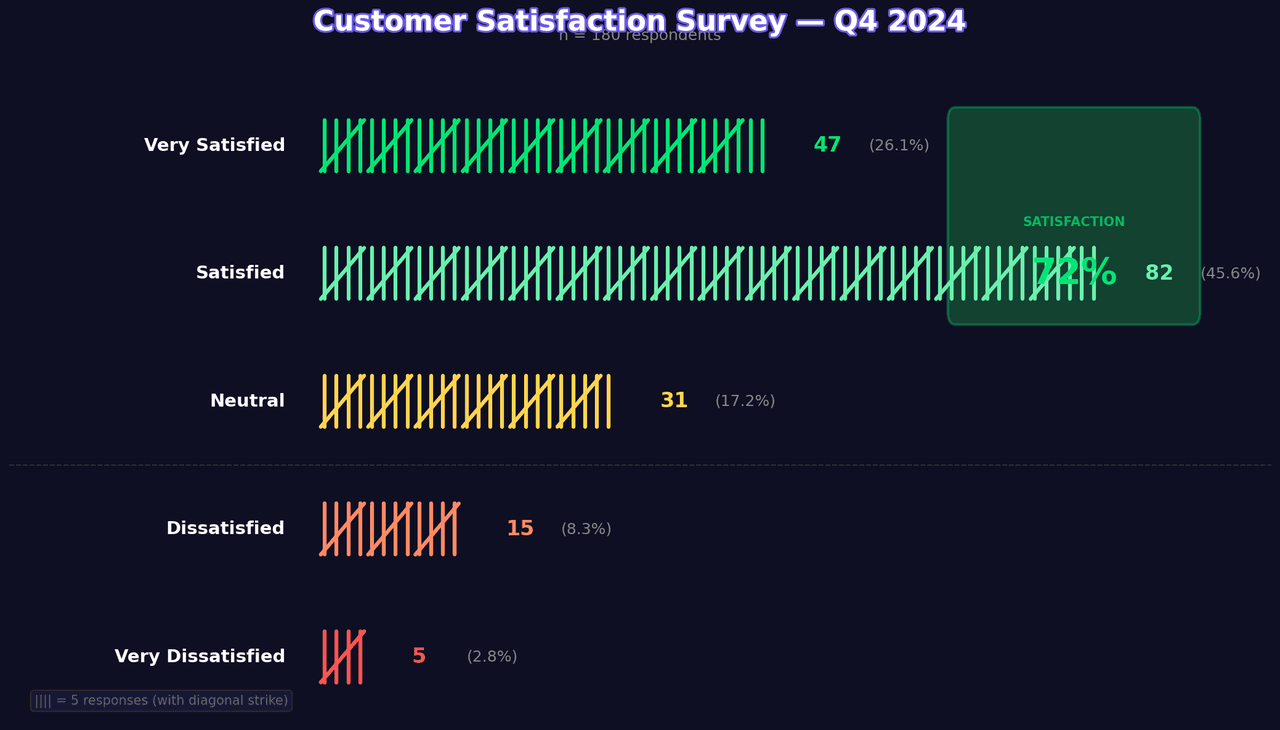
"Create a beautifully formatted tally chart table showing 'Customer Satisfaction Survey Results'. Generate data for 5 response categories with frequencies: 'Very Satisfied' (47 responses, |||| |||| |||| |||| |||| |||| |||| |||| |||), 'Satisfied' (82 responses), 'Neutral' (31 responses), 'Dissatisfied' (15 responses), 'Very Dissatisfied' (5 responses). Display traditional tally marks (groups of 5 with diagonal strike). Include columns: Response, Tally Marks, Frequency, Percentage. Add alternating row colors for readability. Calculate and display total (180 responses). Add a footer row showing cumulative satisfaction rate (Satisfied + Very Satisfied = 71.7%). Use professional table styling with borders. Title: 'Q4 2024 Customer Satisfaction Survey (n=180)'."
How to create this chart with your data
Upload Data
Upload your Excel or CSV file. Data used to generate charts is sent to Plotivy's server for processing.
AI Generation
Our AI analyzes your data and generates the Tally Chart code automatically.
Customize & Export
Tweak the design with natural language, then export as high-res PNG, SVG or PDF.
Newsletter
Get one weekly tip for better tally charts
Join researchers receiving concise Python plotting techniques to improve chart clarity and reduce revision cycles.
Python Code Example
# === IMPORTS ===
import numpy as np
import matplotlib.pyplot as plt
from matplotlib.patches import Rectangle, FancyBboxPatch
import matplotlib.patheffects as pe

# === USER-EDITABLE PARAMETERS ===
title = "Customer Satisfaction Survey — Q4 2024"
figsize = (14, 8)

# === EXAMPLE DATASET ===
data = {
    'Response': ['Very Satisfied', 'Satisfied', 'Neutral', 'Dissatisfied', 'Very Dissatisfied'],
    'Frequency': [47, 82, 31, 15, 5],
    'Color': ['#00E676', '#69F0AE', '#FFD54F', '#FF8A65', '#FF5252']
}

total = sum(data['Frequency'])
print("=== Customer Satisfaction Survey Results ===")
print(f"\nTotal Responses: {total}")
for i, (response, freq) in enumerate(zip(data['Response'], data['Frequency'])):
    pct = freq / total * 100
    print(f"  {response}: {freq} ({pct:.1f}%)")

satisfaction_rate = (data['Frequency'][0] + data['Frequency'][1]) / total * 100
print(f"\nSatisfaction Rate: {satisfaction_rate:.1f}%")

# === CREATE TALLY CHART ===
fig, ax = plt.subplots(figsize=figsize, facecolor='#0f0f23')
ax.set_facecolor('#0f0f23')

# Draw tally marks visualization
y_positions = np.arange(len(data['Response']))[::-1]
bar_height = 0.6
tally_width = 0.6

for i, (response, freq, color) in enumerate(zip(data['Response'], data['Frequency'], data['Color'])):
    y = y_positions[i]

    # Draw response label
    ax.text(-0.5, y, response, fontsize=14, fontweight='bold',
            color='white', ha='right', va='center')

    # Draw tally marks
    groups_of_5 = freq // 5
    remainder = freq % 5
    x_start = 0

    for g in range(groups_of_5):
        # Draw 4 vertical lines
        for j in range(4):
            x = x_start + j * 0.15
            ax.plot([x, x], [y - bar_height/3, y + bar_height/3],
                   color=color, linewidth=3, solid_capstyle='round')

        # Draw diagonal strike-through
        ax.plot([x_start - 0.05, x_start + 0.5],
               [y - bar_height/3, y + bar_height/3],
               color=color, linewidth=3, solid_capstyle='round')

        x_start += tally_width

    # Draw remaining marks
    for j in range(remainder):
        x = x_start + j * 0.15
        ax.plot([x, x], [y - bar_height/3, y + bar_height/3],
               color=color, linewidth=3, solid_capstyle='round')

    # Draw frequency and percentage
    pct = freq / total * 100
    x_end = max(groups_of_5 * tally_width + remainder * 0.15, 0.5)
    ax.text(x_end + 0.5, y, f'{freq}', fontsize=16, fontweight='bold',
            color=color, ha='left', va='center')
    ax.text(x_end + 1.2, y, f'({pct:.1f}%)', fontsize=12,
            color='#888', ha='left', va='center')

# Add satisfaction rate highlight
ax.axhline(y=y_positions[2] - 0.5, color='#333', linestyle='--', linewidth=1)

# Satisfaction indicator
sat_box = FancyBboxPatch((8, y_positions[1] - 0.3), 3, 1.5,
                          boxstyle="round,pad=0.1",
                          facecolor='#1DB954', edgecolor='#00E676',
                          linewidth=2, alpha=0.3)
ax.add_patch(sat_box)
ax.text(9.5, y_positions[1] + 0.4, 'SATISFACTION', fontsize=10,
        color='#1DB954', ha='center', va='center', fontweight='bold')
ax.text(9.5, y_positions[1], f'{satisfaction_rate:.0f}%', fontsize=28,
        color='#00E676', ha='center', va='center', fontweight='bold')

# Title
ax.set_title(title, fontsize=22, fontweight='bold', color='white', pad=20,
             path_effects=[pe.withStroke(linewidth=3, foreground='#6c5ce7')])

# Subtitle
ax.text(0.5, 1.02, f'n = {total} respondents', transform=ax.transAxes,
        fontsize=12, color='#888', ha='center', va='bottom')

# Styling
ax.set_xlim(-4, 12)
ax.set_ylim(-0.5, len(data['Response']) - 0.3)
ax.axis('off')

# Legend
legend_text = '|||| = 5 responses (with diagonal strike)'
ax.text(0.02, 0.02, legend_text, transform=ax.transAxes, fontsize=10,
        color='#666', ha='left', va='bottom',
        bbox=dict(boxstyle='round', facecolor='#1a1a3a', alpha=0.8, edgecolor='#333'))

plt.tight_layout()
plt.savefig('chart.png', dpi=150, bbox_inches='tight', facecolor='#0f0f23')
print("Saved: chart.png")
plt.show()
# END-OF-CODE
Opens the Analyze page with this code pre-loaded and ready to execute
Console Output
=== Customer Satisfaction Survey Results ===

Total Responses: 180
  Very Satisfied: 47 (26.1%)
  Satisfied: 82 (45.6%)
  Neutral: 31 (17.2%)
  Dissatisfied: 15 (8.3%)
  Very Dissatisfied: 5 (2.8%)

Satisfaction Rate: 71.7%
Saved: chart.png
Common Use Cases
- 1Survey result display
- 2Categorical data counts
- 3Inventory tracking
- 4Vote tabulation
Pro Tips
Sort by frequency or alphabetically
Add percentage column
Use color gradients for values
Frequently asked questions
When should you use a tally chart?
Tally charts organize frequency counts in a clear, tabular format. Modern implementations use styling libraries to create publication-quality tables that effectively communicate categorical data distributions and survey results. Common applications include survey result display, categorical data counts, and inventory tracking.
Which Python libraries can create a tally chart?
A tally chart can be built in Python with pandas, great-tables, and plottable — pandas for quick plots straight from a DataFrame, great-tables, and plottable. In Plotivy you describe the figure and it writes the pandas code for you.
Can I make a tally chart without writing Python code?
Yes. Describe the tally chart you need in plain language and upload your dataset — Plotivy's AI writes the Python code and renders a publication-ready figure. You still get the full, editable pandas source, so nothing is locked in a black box.
What are best practices for a clear tally chart?
Sort by frequency or alphabetically. Add percentage column.
Library comparison for this chart
pandas
Good for quick exploratory drafts directly from DataFrame operations before polishing in matplotlib or plotly.
great-tables
Useful in specialized workflows that complement core Python plotting libraries for tally-chart analysis tasks.
plottable
Useful in specialized workflows that complement core Python plotting libraries for tally-chart analysis tasks.
Scientific Chart Selection Cheat Sheet
Not sure whether to use a Violin Plot, Box Plot, or Ridge Plot? Download our single-page reference mapping the most-used scientific chart types, exactly when to use them, and the core Matplotlib/Seaborn functions.